Issue an online damages claim as a legal professional
Updated 23 July 2026

© Crown copyright 2026
This publication is licensed under the terms of the Open Government Licence v3.0 except where otherwise stated. To view this licence, visit nationalarchives.gov.uk/doc/open-government-licence/version/3 or write to the Information Policy Team, The National Archives, Kew, London TW9 4DU, or email: psi@nationalarchives.gov.uk.
Where we have identified any third party copyright information you will need to obtain permission from the copyright holders concerned.
This publication is available at https://www.gov.uk/government/publications/myhmcts-how-to-make-a-damages-claim-online/issue-an-online-damages-claim-as-a-legal-professional
1. Before you start
Before you can create a case using MyHMCTS, you or your organisation must have completed other steps:
- Registered your organisation with MyHMCTS.
- Set up your MyHMCTS user account.
The MyHMCTS registration guidance has further information and instructions. If your organisation has an account already, contact the administrator to arrange for your account creation.
If you need additional help with MyHMCTS email MyHMCTSsupport@justice.gov.uk. We aim to respond within 5 working days.
You cannot save a draft of the claim before it is submitted, so you should make sure you have all the information you need to issue the claim before you start.
2. Start a claim
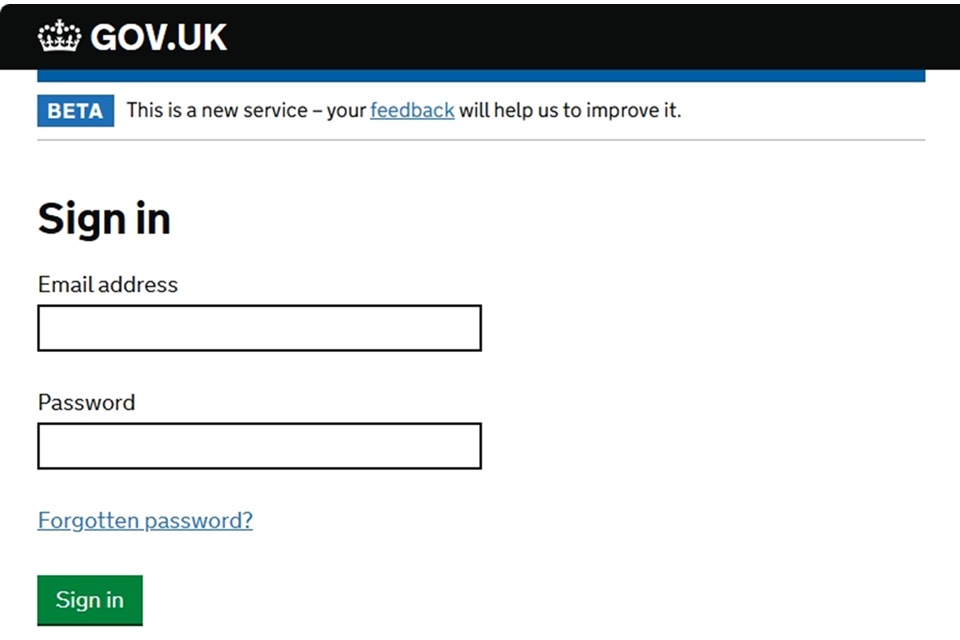
1. Sign in to MyHMCTS using your email address and password.
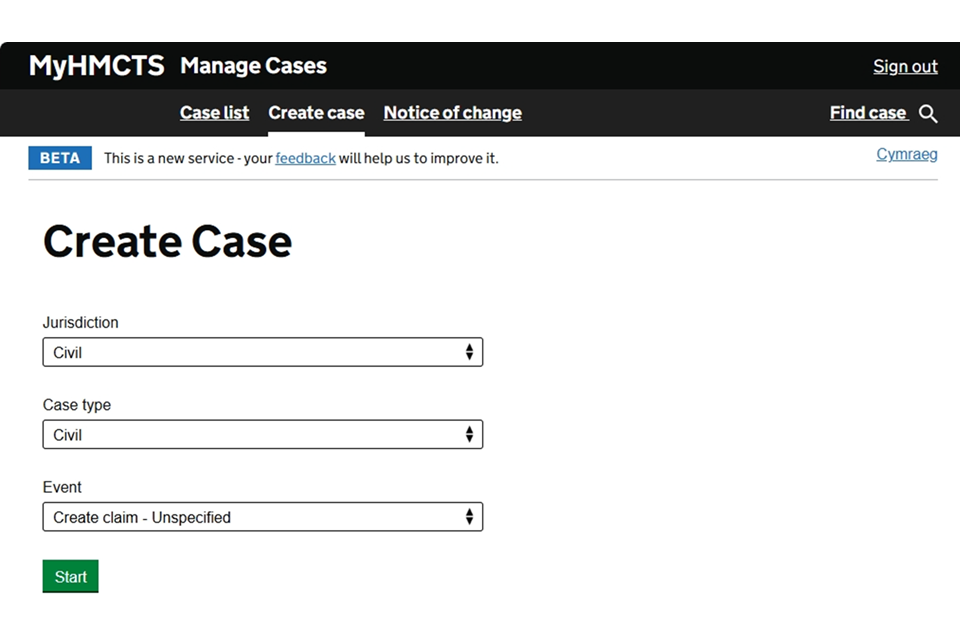
2. Select ‘Create case’ from the header menu. Use the drop-down boxes to select:
- Jurisdiction – Civil
- Case type – Civil
- Event – Create claim – unspecified
3. The next screen explains the eligibility criteria for using the service. For full guidance see practice direction 51ZB – the damages claims pilot. Select ‘Continue’.
4. Add references for the parties’ representatives if you have them.
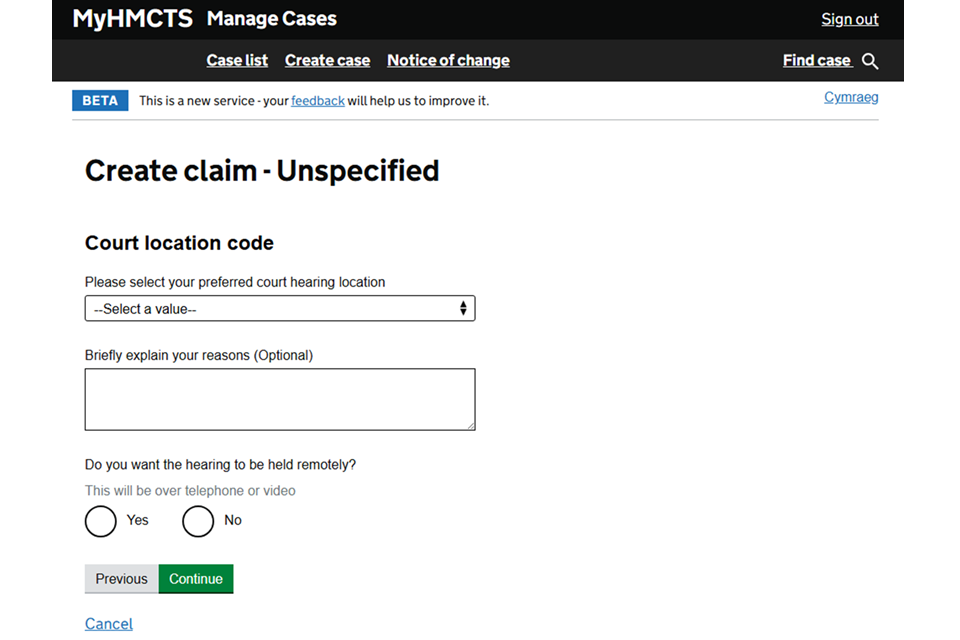
5. Select the court at which you would like the case to be heard from the drop-down list.
It is important to enter the correct court. Where a claim must be started at a particular county court hearing centre under the civil procedure rules practice direction 2C, you should enter the code for that hearing centre.
6. You can give a brief explanation for your choice, if necessary.
7. Select whether you want the hearing to be held remotely.
3. Claimant’s details
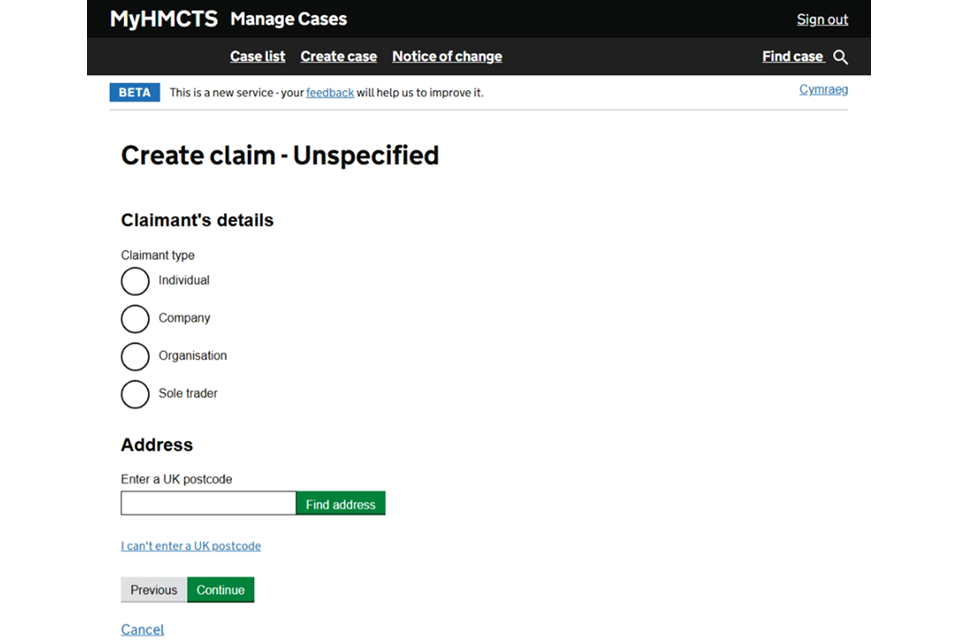
1. Select what type of claimant is making the claim:
- individual
- company
- organisation
- sole trader
Depending on which you select, you will be asked further questions.
If the claimant is an individual, you must provide their name, address and date of birth. You can also provide their email address if you know it.
2. Select whether the claimant is a child – defined as someone aged under the age of 18 at the time the claim is issued.
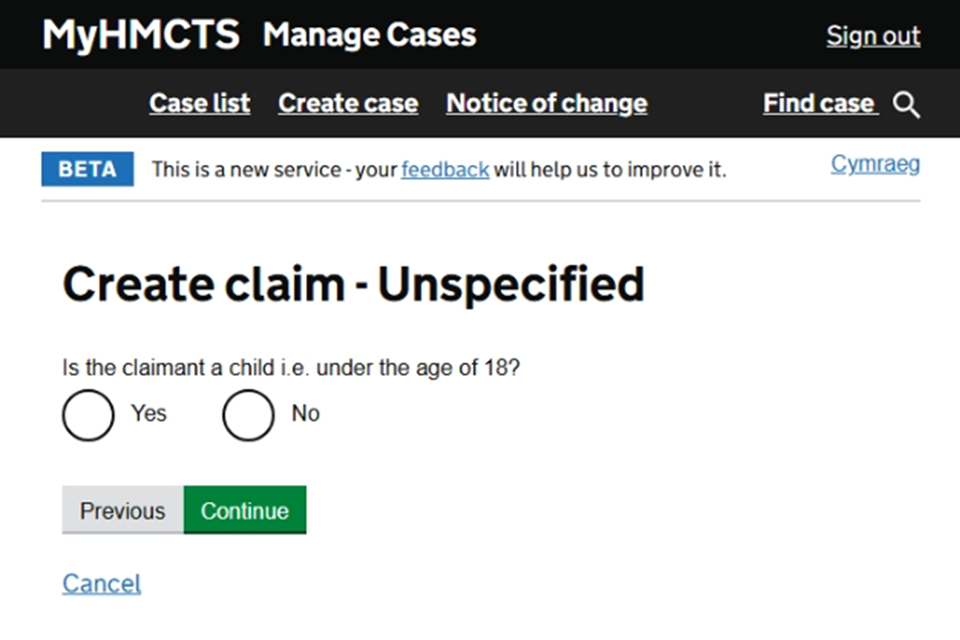
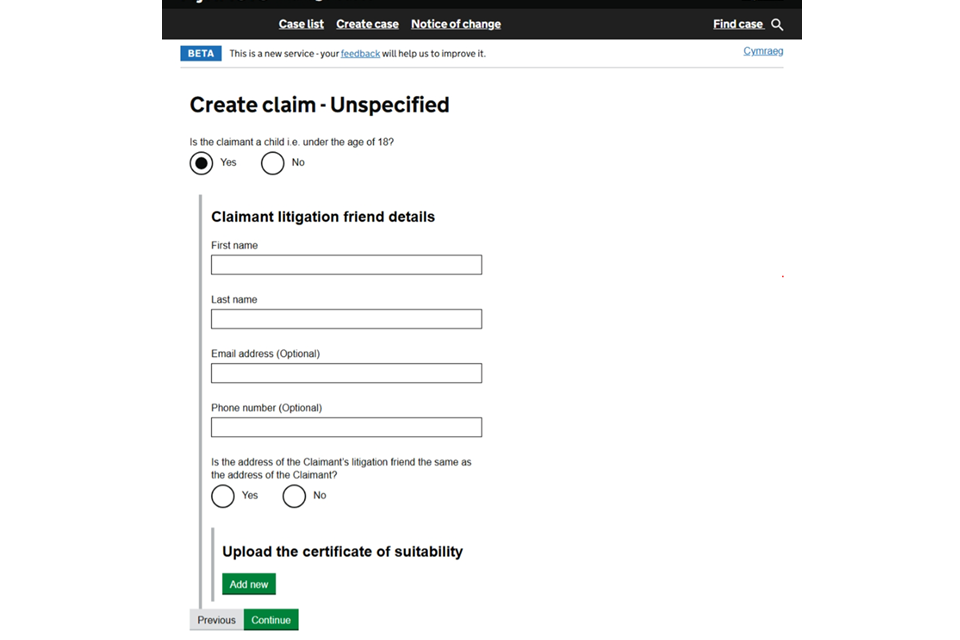
If you select that they are a child, you will be asked questions about their litigation friend. If they are not a child, you will go next to a page about notifications.
Litigation friend
1. Enter the litigation friend’s first and last name, and their contact details, if you have them.
2. You must also upload the litigation friend’s certificate of suitability by selecting ‘Add new’ and browsing for the file. If you do not provide this information you cannot continue.
Notifications
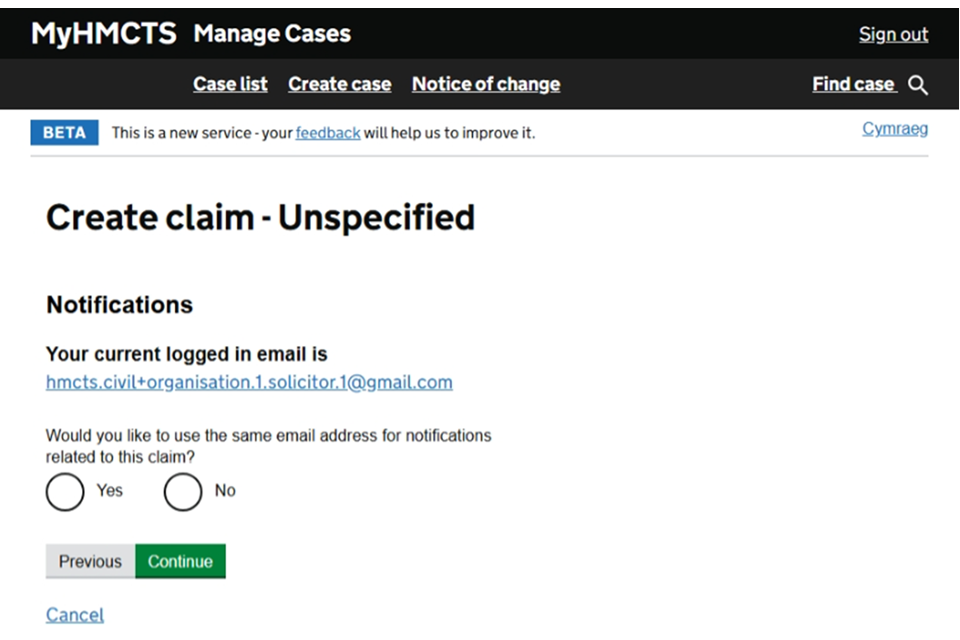
1. You will be shown your registered email address and asked if you would like notifications relating to the claim sent to this email address. If you answer ‘No’, you will be able to enter an alternative email address. You must make sure you enter the email address correctly.
Claimant’s legal representative
1. Add your organisations claim reference, if appropriate. Your organisation name should already be pre-populated and should not need to be amended.
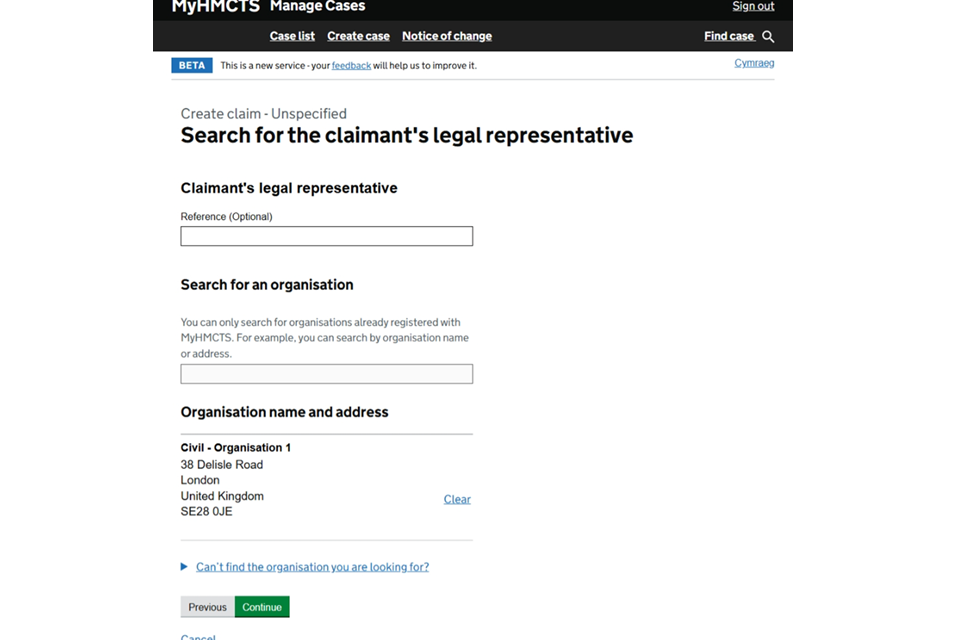
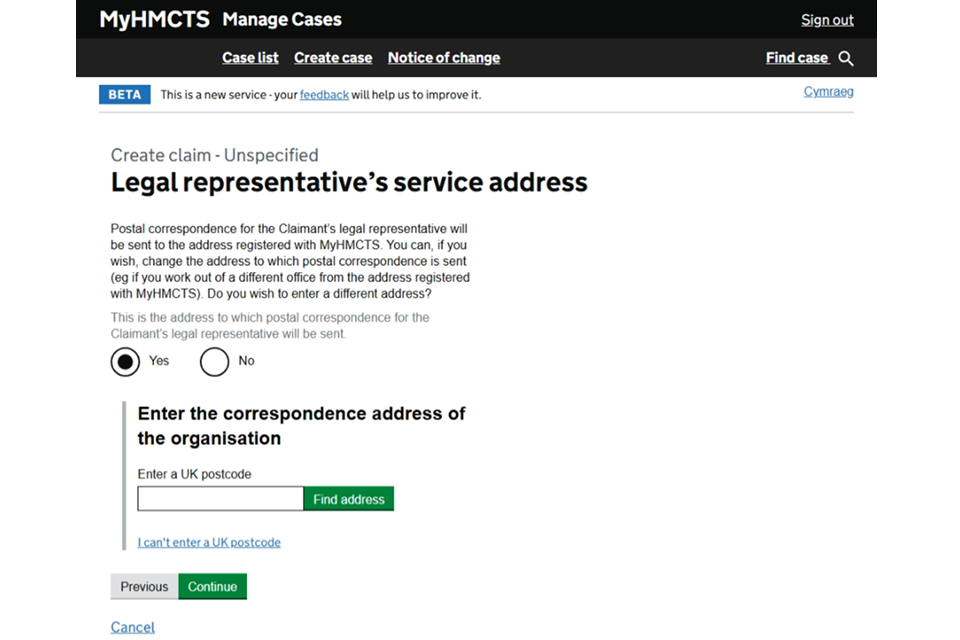
2. You can amend your firm’s postal correspondence address in case this differs from the address your firm’s account is registered with. Select ‘Yes’ and search for the address to do this.
Second claimant
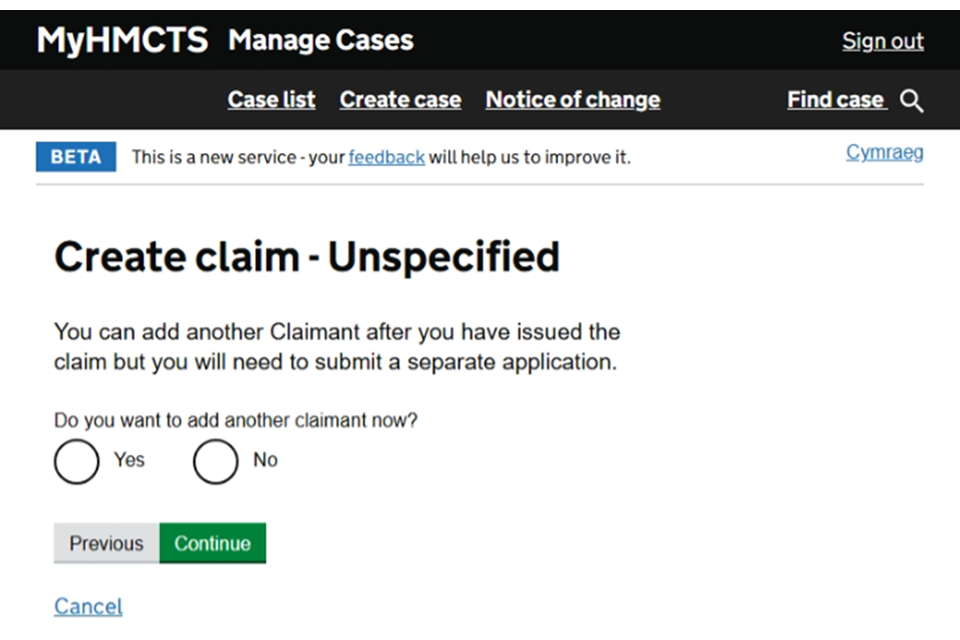
1. If you want to add another claimant now, select ‘Yes’. You can then repeat all the steps in this section for the other claimant.
If you need to make changes to your claim after you have submitted it, send a request with the amendments to damagesclaims@justice.gov.uk.
4. Defendant’s details
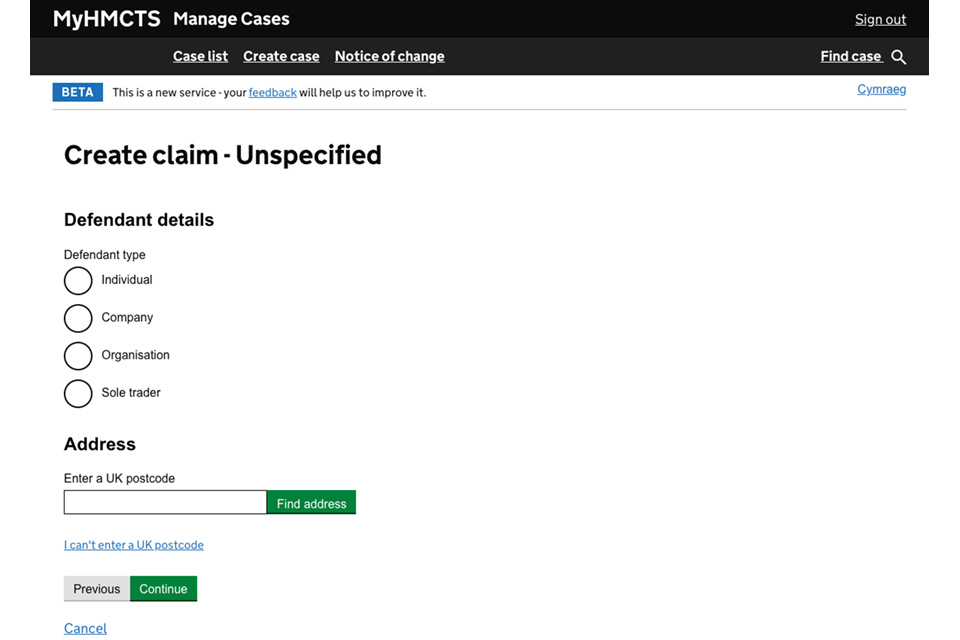
1. Select what type of defendant you are making the claim against:
- individual
- company
- organisation
- sole trader
Depending on which you select, you will be asked further questions.
If the defendant is an individual, you must provide their name, address and date of birth. You can also provide their email address if you know it.
Defendant’s legal representative
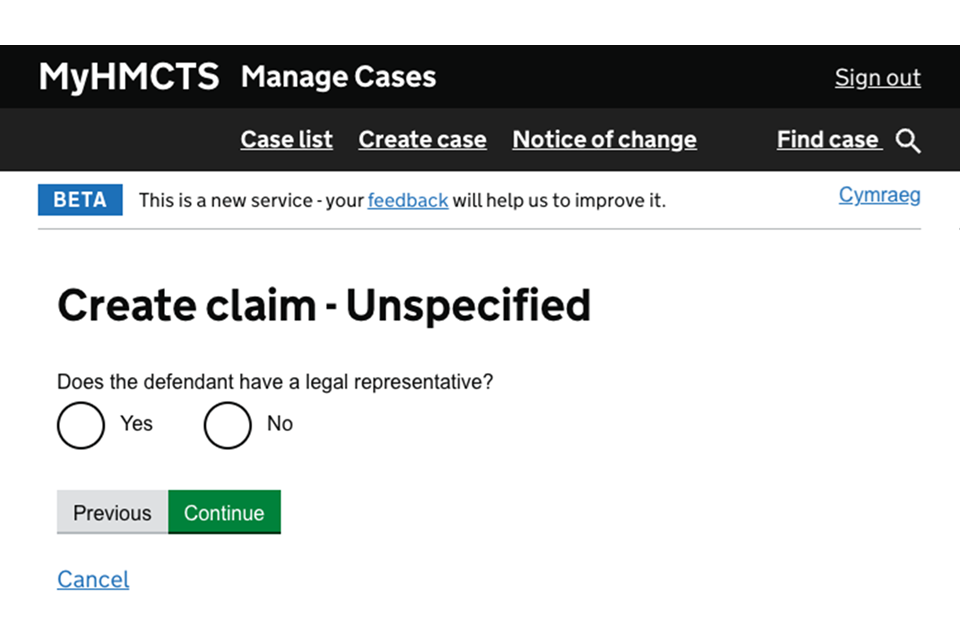
1. Select if the defendant has a legal representative. If ‘No’, your next question will be about a second defendant.
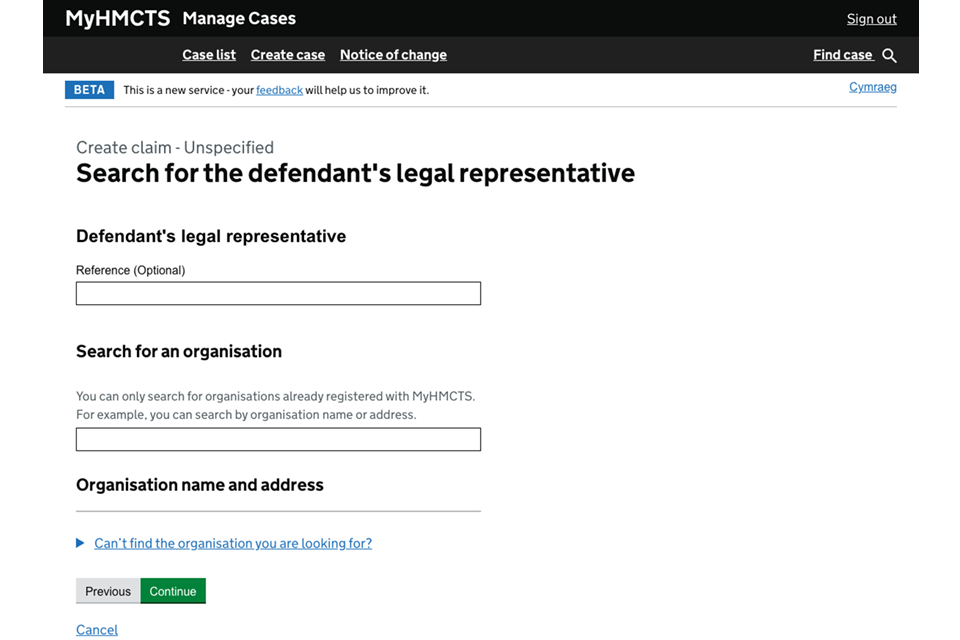
2. Add the defendant legal representative’s reference if you know it and search for their organisation to add their address.
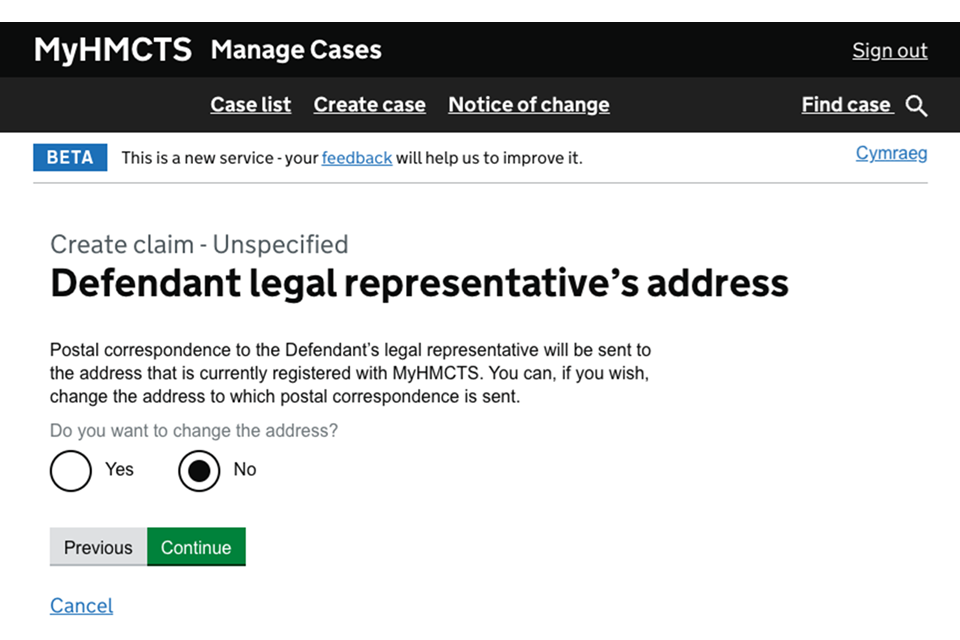
3. You can amend the defendant legal representative’s postal correspondence address in case this differs from the address their firm’s account is registered with. Select ‘Yes’ and search for the address to do this.
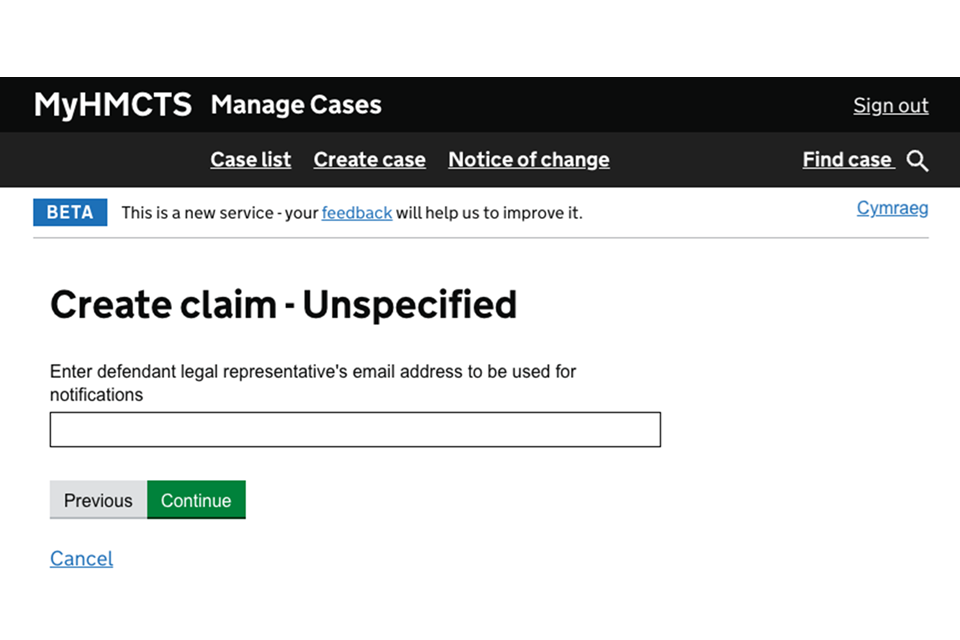
4. Enter the defendant legal representative’s email address.
Second defendant
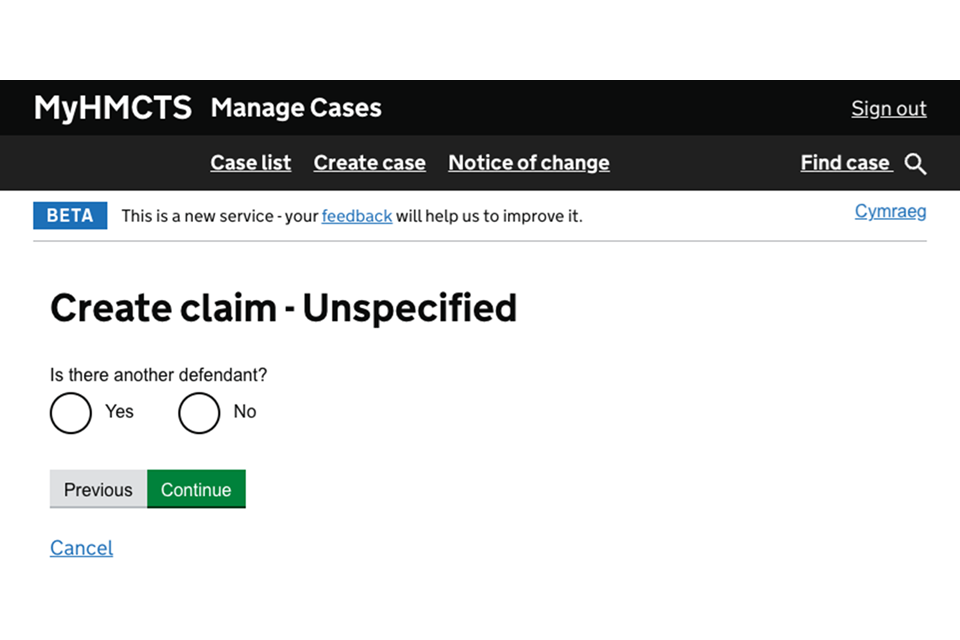
1. If you want to add another defendant now, select ‘Yes’. You can then repeat all the steps in this section for the other defendant.
If you added a second claimant earlier in the claim, you cannot add a second defendant as the service only allows for:
- 1 claimant to 1 defendant
- 2 claimants to 1 defendant
- 1 claimant to 2 defendants
If you need to make changes to your claim after you have submitted it, send a request with the amendments to damagesclaims@justice.gov.uk.
5. About the claim
1. Select the type of claim you are making. If claiming damages for personal injuries, you should choose ‘Personal injury’ or ‘Clinical negligence’, as appropriate, even if there is also another claim – for breach of contract, for example. Otherwise, you should select the option that best describes the general nature of the claim.
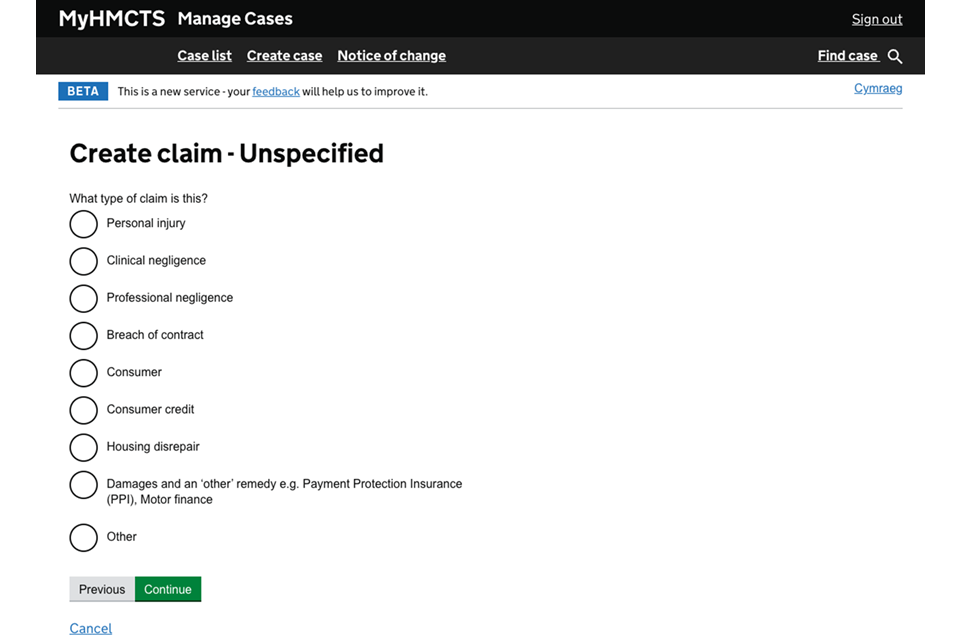
Personal injury
1. If you are making a personal injury claim, select the type of claim you are making. Select the option that best describes the general nature of the claim.
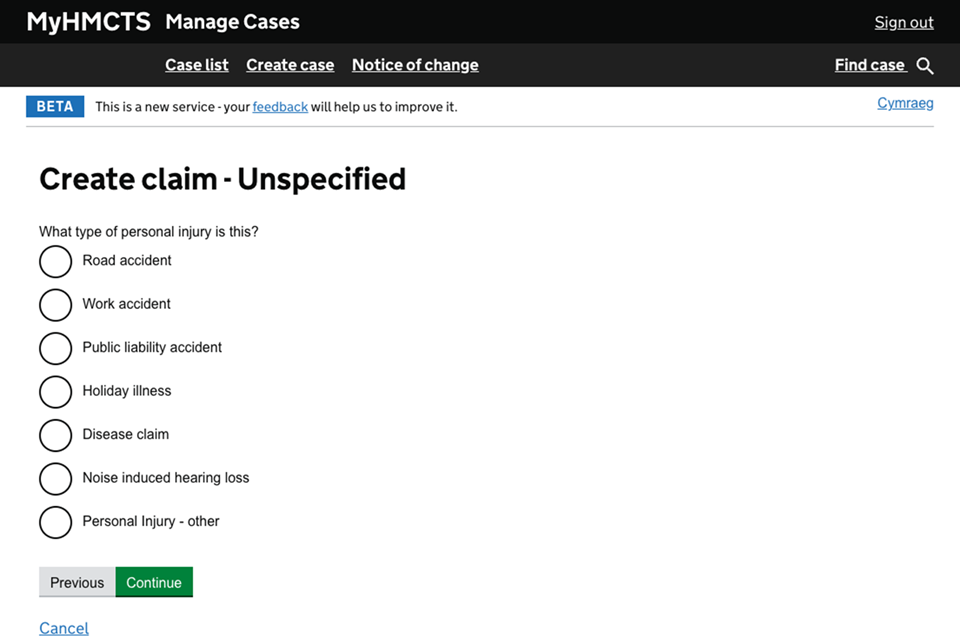
Housing disrepair or damages and an ‘other’ remedy
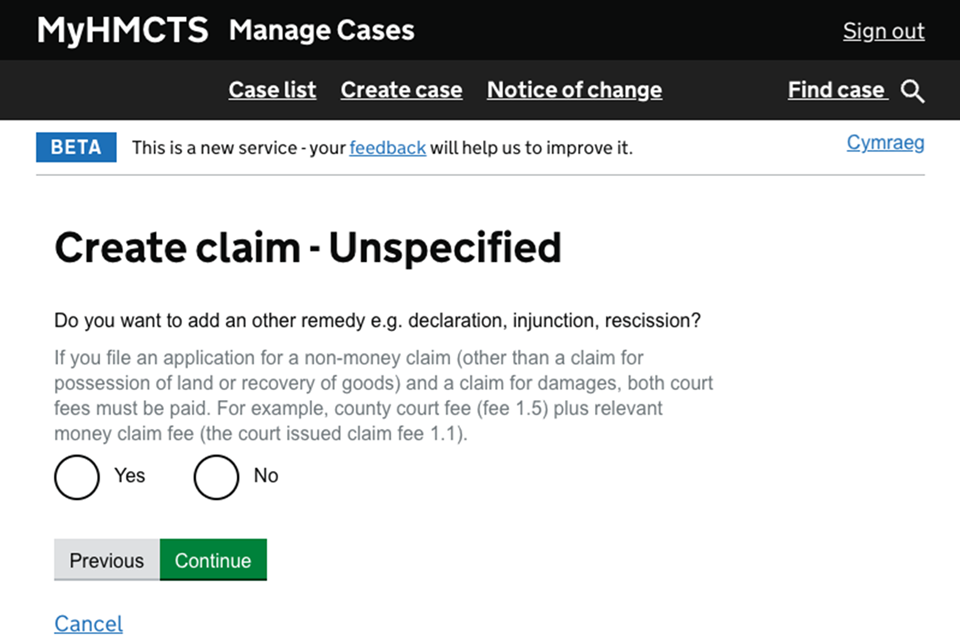
1. If you are making a claim for housing disrepair or ‘damages and an ‘other’ remedy’, select if you want to add an ‘other’ remedy to the claim – for example, a declaration, injunction or rescission (cancellation). If you select ‘Yes’, enter the other remedy narrative.
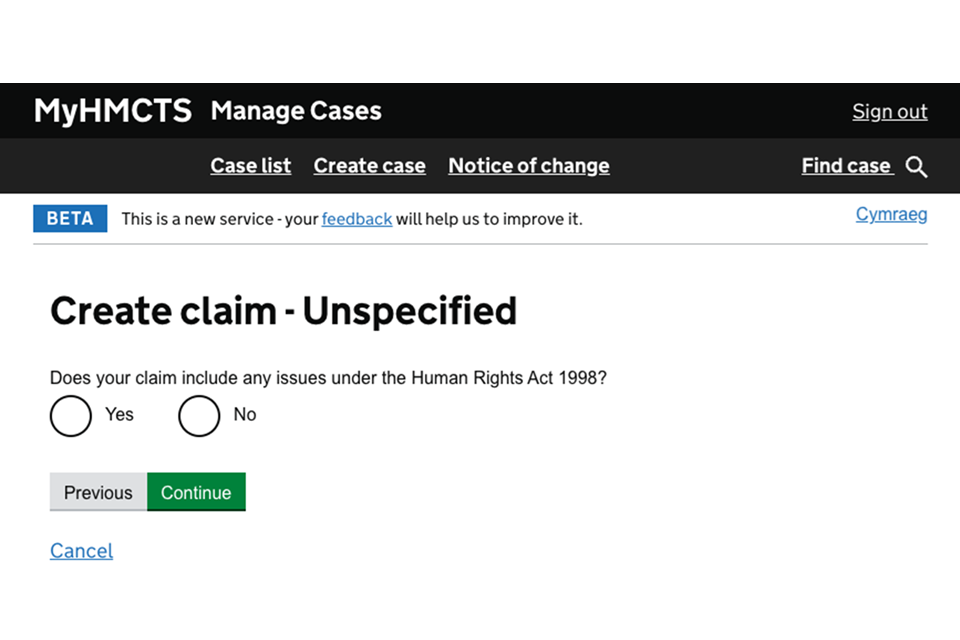
2. Select if your claim includes any issues under the Human Rights Act.
Details of the claim
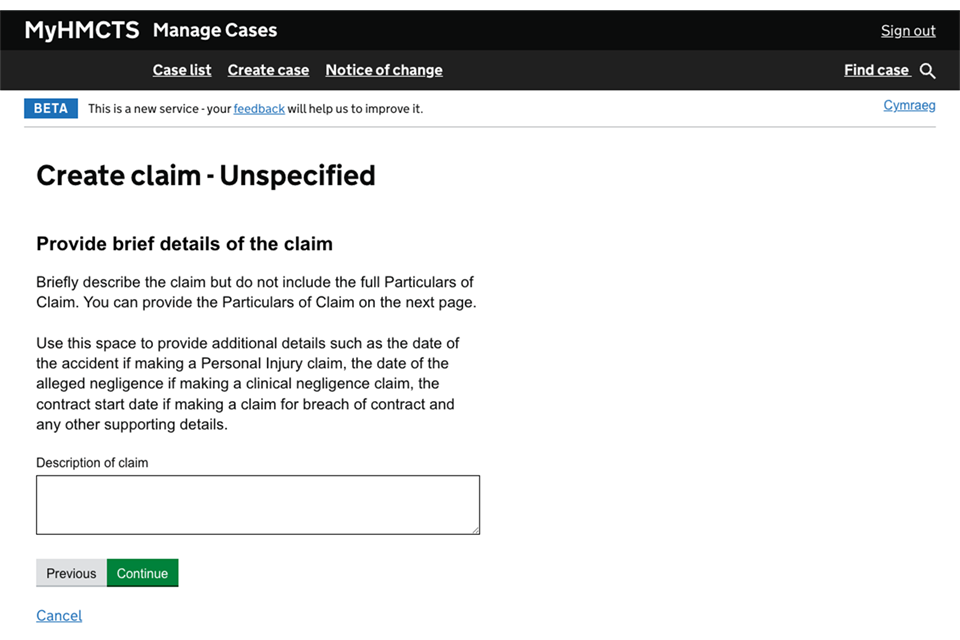
1. Briefly describe the details of the claim. This information will be included on the claim form.
Do not include the full particulars of claim here, as this will be asked for on the next screen.
Particulars of claim
1. Select if you want to upload any particulars of claim.
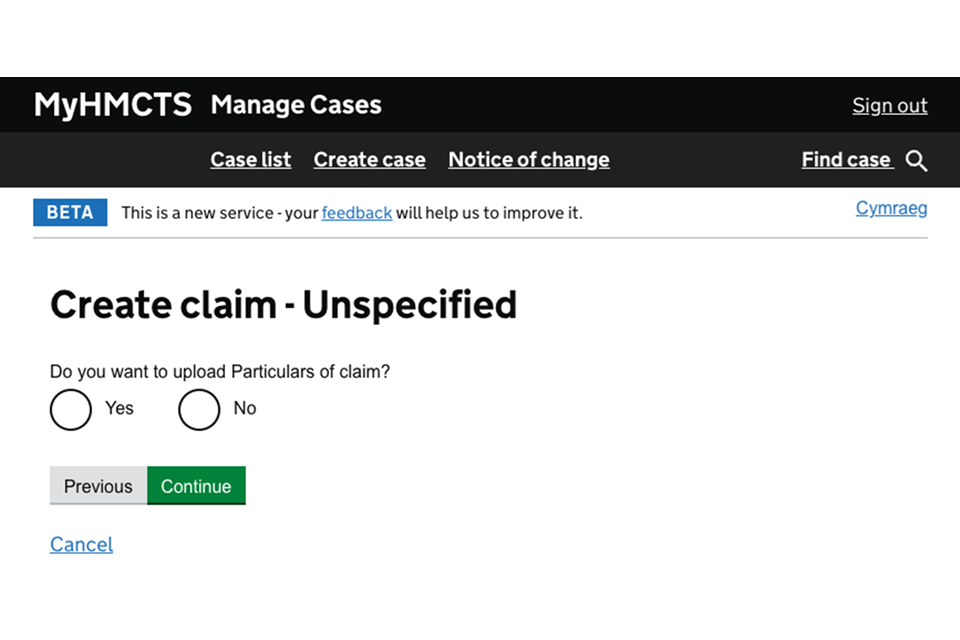
You can upload the particulars of claim later – within 4 months of the date of issue of the claim.
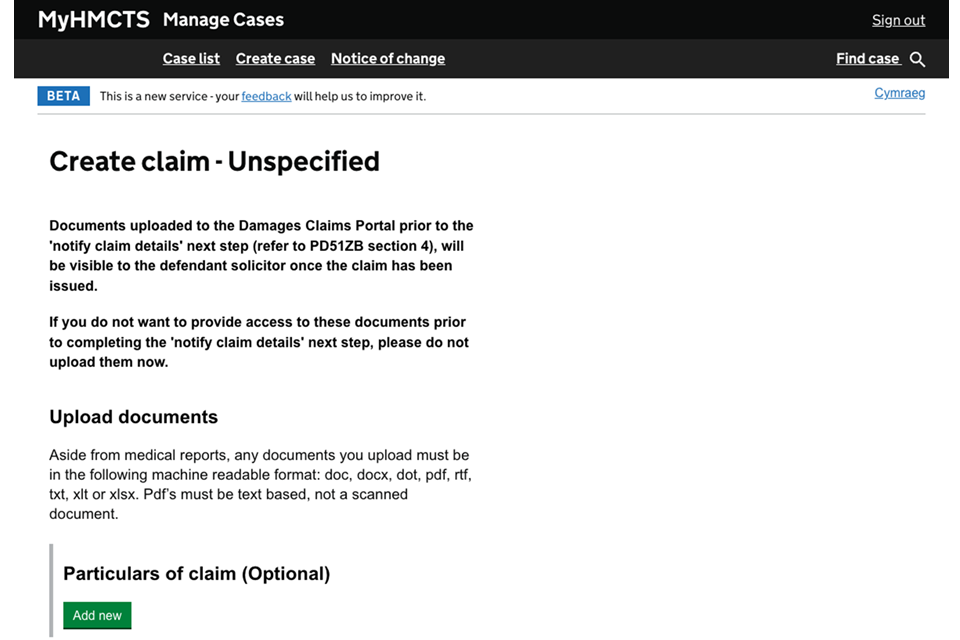
You can add to or replace these documents at any point up until you notify the claim details.
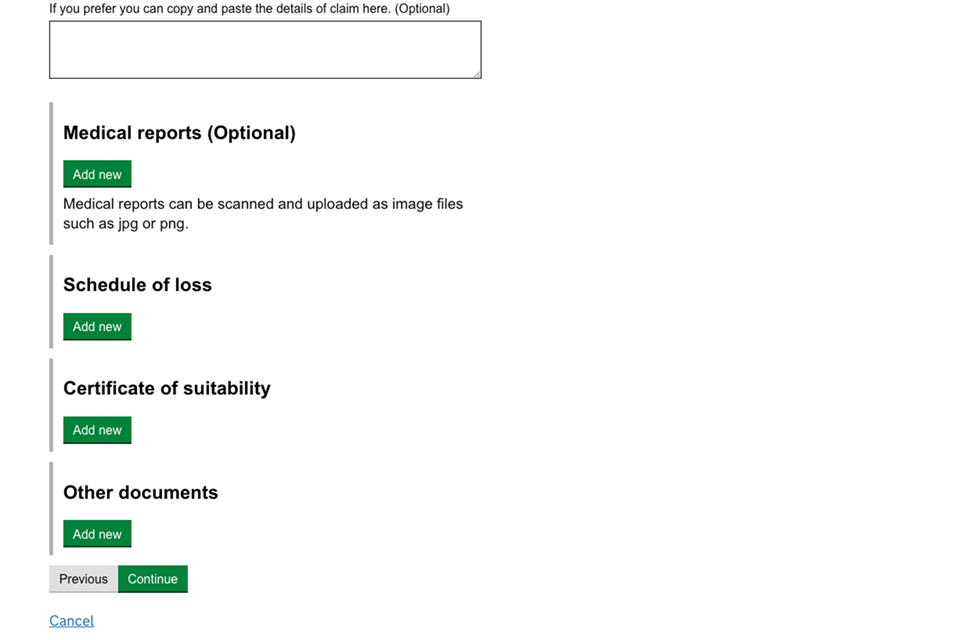
2. Add the particulars of claim by uploading a document or by copying and pasting them into the text box.
You can also add other evidence:
- medical reports
- schedule of loss
- certificate of suitability
- any other documents
Claim value
1. Enter the total amount of damages you are claiming. You should put the upper value of the damages claim here.
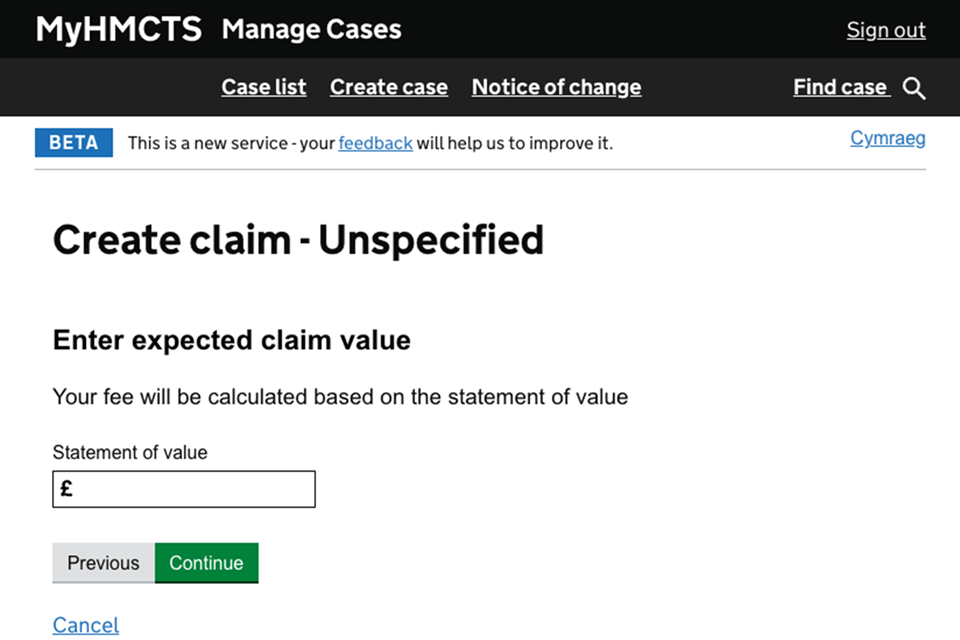
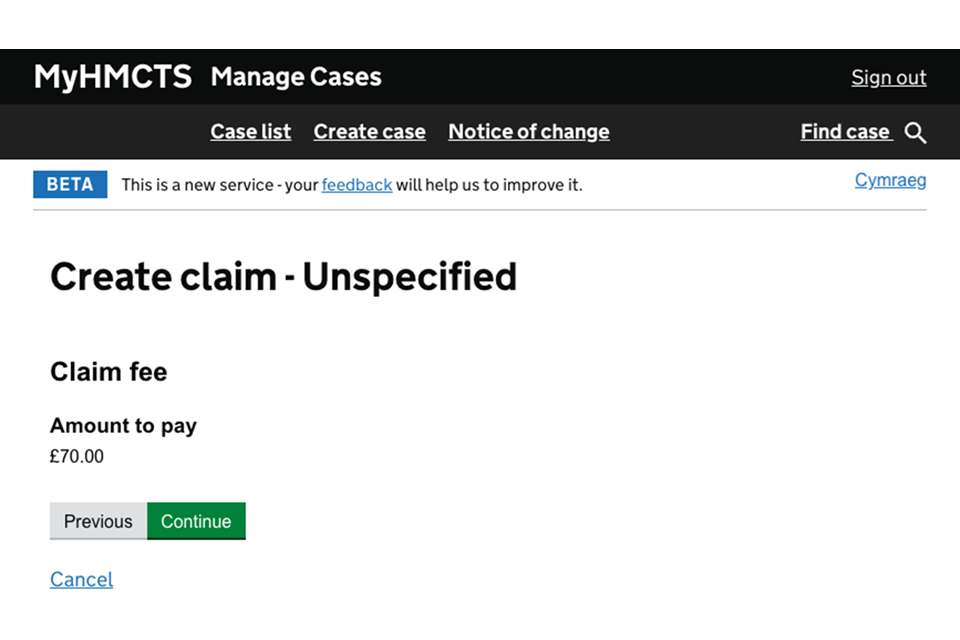
2. The court fee is calculated automatically. If you are seeking another remedy as well as damages, this fee is added to the claim fee due.
6. Issue the claim
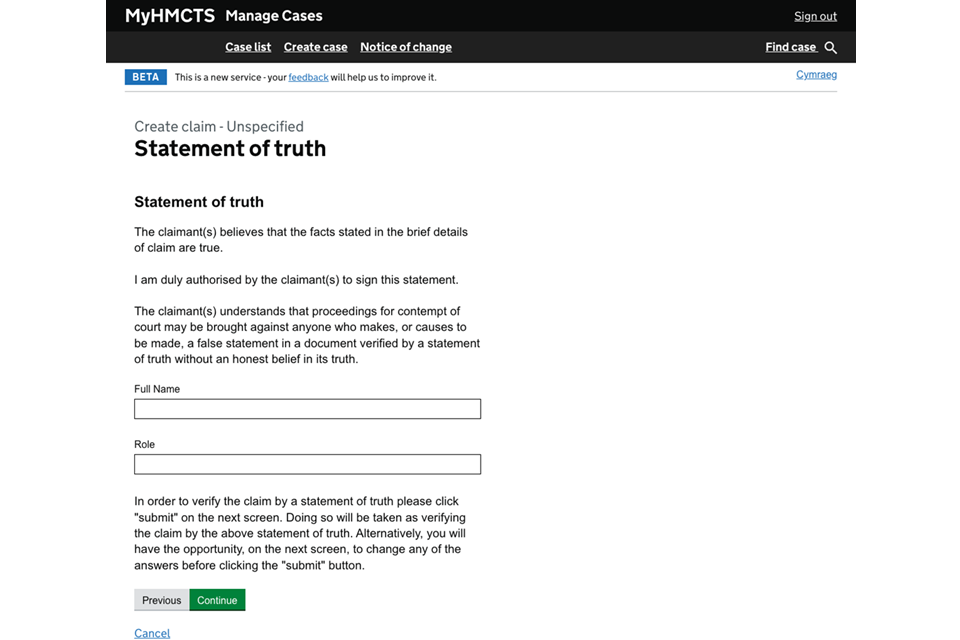
1. Enter the name and role of the person who is verifying the details of the claim on behalf of the claimant. By selecting ‘Continue’, and then ‘Submit’ on the next screen, you will be confirming that the statements made in the claim are true.
2. You will then see a ‘Check your answers’ screen’. To amend any details, select ‘Change’ next to the relevant section – you will be taken back to the corresponding screen to update the information.
3. If you amend any details that you have previously entered, you will need to re-sign the statement of truth.
4. When you are ready to request the issue of the claim, select ‘Submit’.
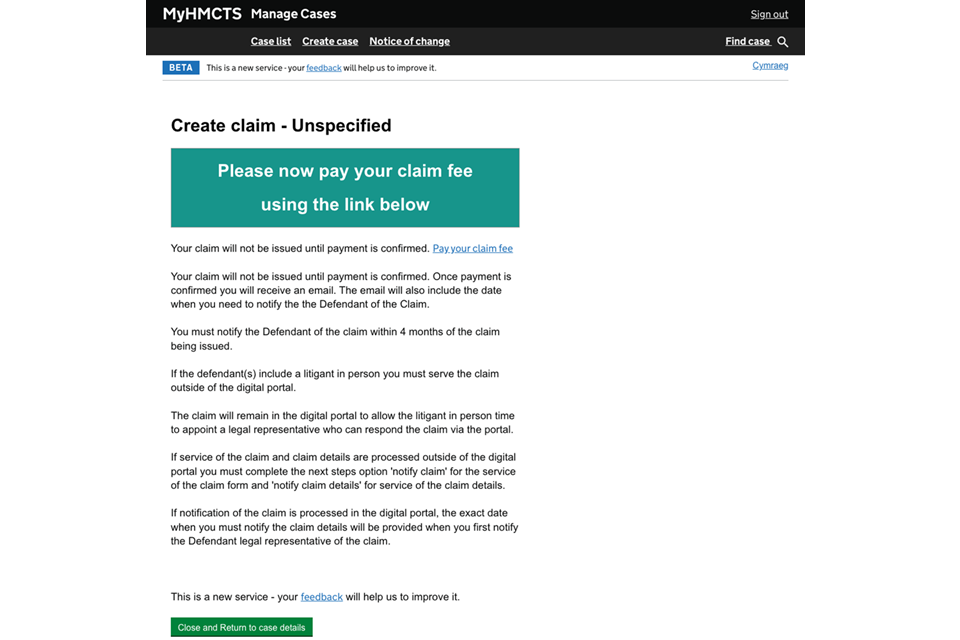
The claim is not issued at this point. It will only be issued once the issue fee has been paid.
5. You will see a confirmation screen telling you that you must pay the claim issue fee before the claim is officially classed as issued. Select ‘Close and return to case details’ to go to the case.
7. Pay the issue fee
1. Open the ‘Service Request’ tab and select ‘Pay now’.
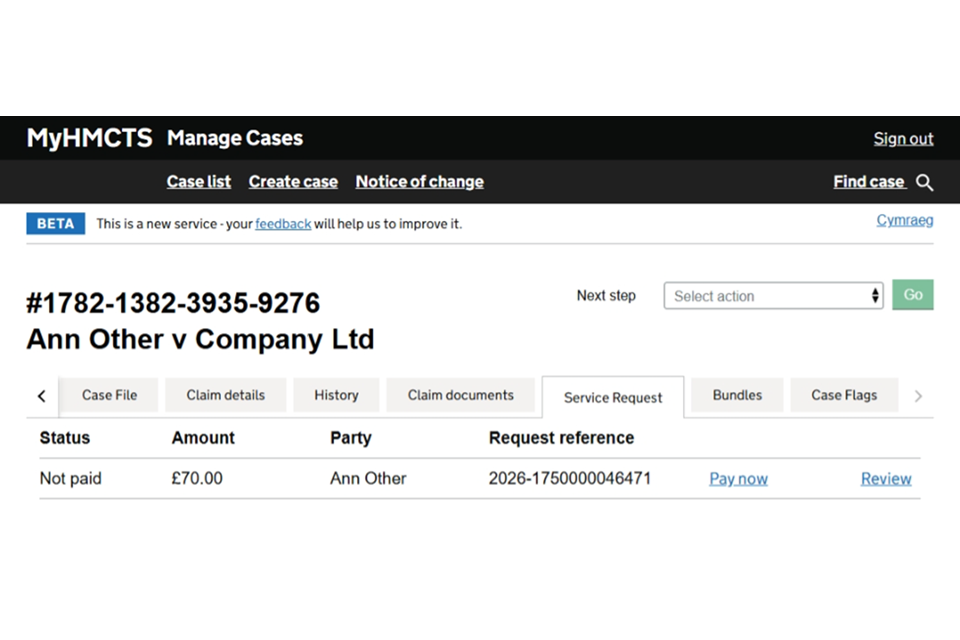
2. Select if you want to pay by Payment by Account (PBA) or by credit or credit card.
Pay by PBA
1. Select the PBA option and choose your firm’s PBA account from the dropdown list. You will be asked to enter a reference for the payment. This should be your own unique reference used to identify the case. This reference will appear on your firm’s PBA invoice.
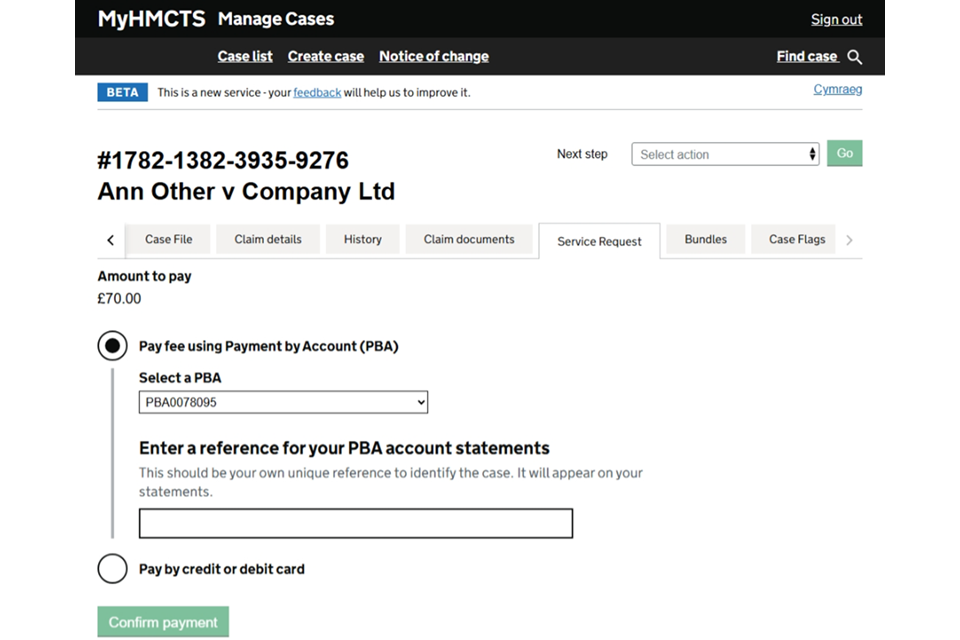
If your PBA number does not appear in the list, your firm’s administrator will need to contact the MyHMCTS support team on MyHMCTSsupport@justice.gov.uk.
2. Select the ‘Confirm payment’ button.
You will see a confirmation that the payment has been successful. The claim will now be issued and the claim form will be available within the ‘Claim documents’ tab.
You will also receive an email to confirm the payment and claim issue. This will include the deadline for notifying the claim to the defendant.
You must notify the claim details to the defendant within 4 months of the issue date. This is the digital equivalent of service of the claim form under civil procedure rule 7.5. The court does not serve the defendant.
Pay by credit or debit card
1. Select ‘Pay by credit or debit card’ and ‘Continue’.
2. Enter your card details and billing address.
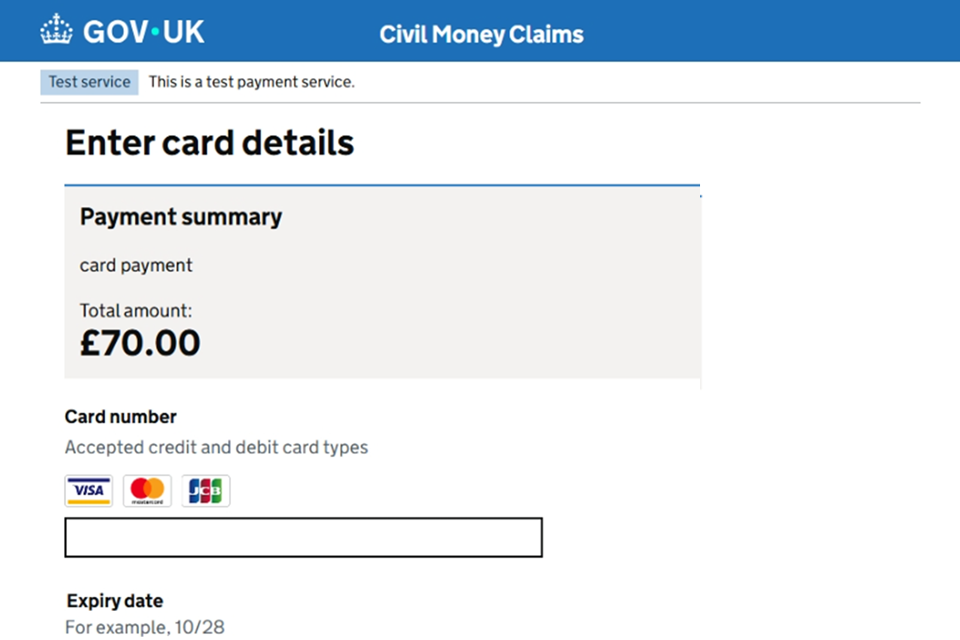
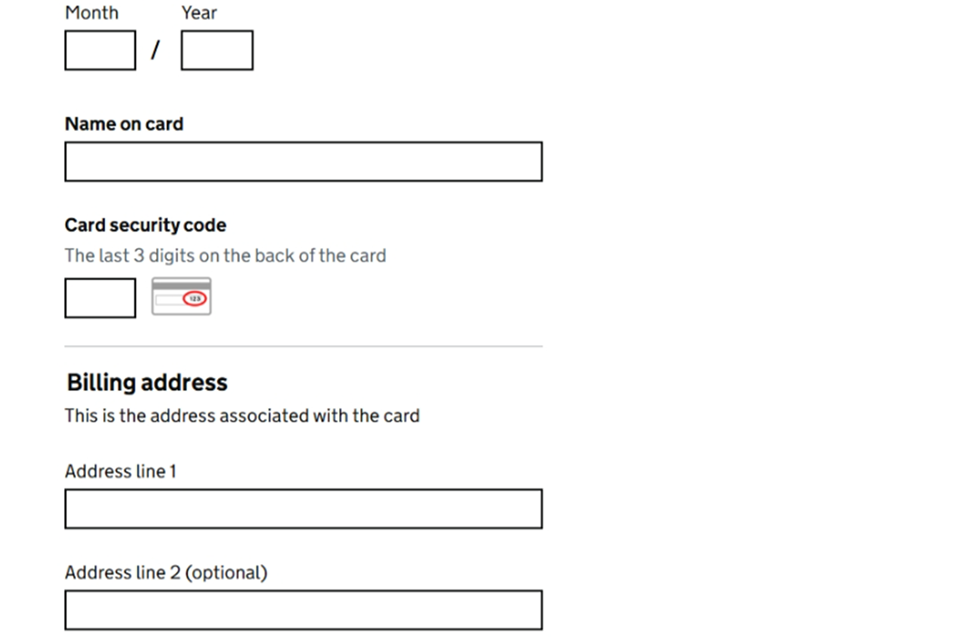
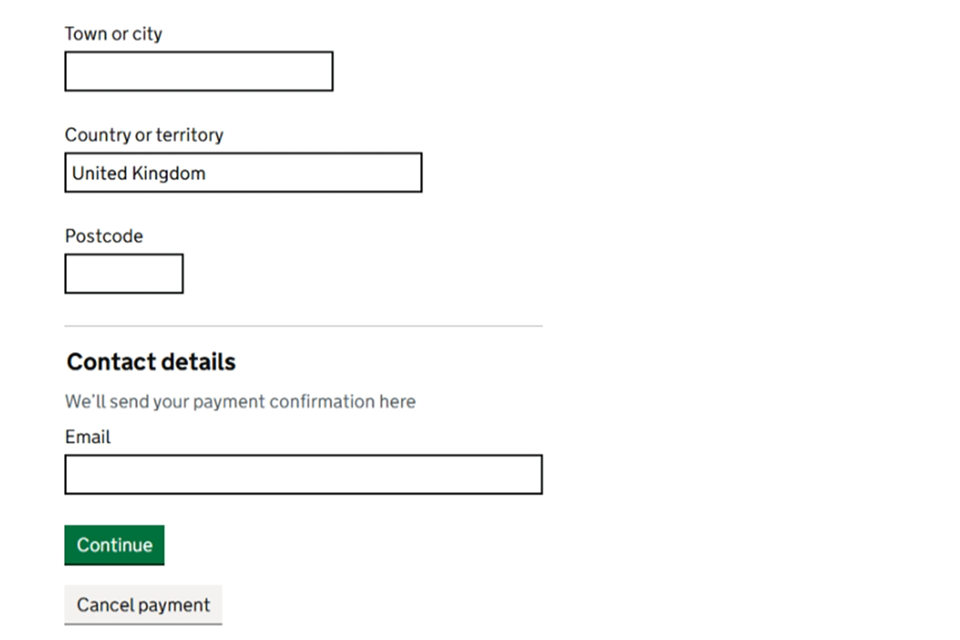
3. You’ll then be asked to review your payment details. Select the ‘Confirm payment’ button.
You will see a confirmation that the payment has been successful. The claim will now be issued and the claim form will be available within the ‘Claim documents’ tab.
You will also receive an email to confirm the payment and claim issue. This will include the deadline for notifying the claim to the defendant.
You must notify the claim details to the defendant within 4 months of the issue date. This is the digital equivalent of service of the claim form under civil procedure rule 7.5. The court does not serve the defendant.
8. Get help and support
Managing cases and case access in MyHMCTS
You can ‘raise a query’ from the next steps menu in MyHMCTS if you need support with:
- a particular case
- managing a case on MyHMCTS
- a claim that has moved offline but is not yet at a local court
Alternatively, contact the courts and tribunals service centre (CTSC):
Telephone: 0300 123 7050
Monday to Friday, 8.30am to 5pm
Find out about call charges
You can also use ‘raise a query’ in MyHMCTS if you see an error message or have a technical issue when managing a case, such as the claim not being fully issued.
If you cannot issue the case, email damagesclaims@justice.gov.uk
Find guidance for case administration tasks in MyHMCTS
Accessing your MyHMCTS account
If you are having trouble accessing MyHMCTS, make sure you are using the correct link. To manage a case, you must use https://manage-case.platform.hmcts.net.
You should also make sure:
- your internet browser is up to date – we recommend you use Google Chrome or Microsoft Edge (you cannot use Internet Explorer or Apple Safari)
- you have cleared your cookies and your cache
- you check your firewall and security settings
We recommend that you bookmark or favourite MyHMCTS in your internet browser. You should only create the bookmark or favourite once you have signed in and are on the homepage. Do not create it from the sign in or verification pages, or while you have a case or organisation open.
If you are still having trouble accessing MyHMCTS, try using a different device to sign in.
If you have an IT support team, they will be able to help with any device, browser and security issues.
If you have an issue with your MyHMCTS account, you should contact an account administrator in your organisation.
If you need additional support with your MyHMCTS account, email MyHMCTSsupport@justice.gov.uk. We aim to respond within 5 working days.