Earnings adjustment statement guidance 2026 to 2027
Published 11 August 2026
Applies to England

© Crown copyright 2026
This publication is licensed under the terms of the Open Government Licence v3.0 except where otherwise stated. To view this licence, visit nationalarchives.gov.uk/doc/open-government-licence/version/3 or write to the Information Policy Team, The National Archives, Kew, London TW9 4DU, or email: psi@nationalarchives.gov.uk.
Where we have identified any third party copyright information you will need to obtain permission from the copyright holders concerned.
This publication is available at https://www.gov.uk/government/publications/how-to-submit-your-earnings-adjustment-statement-2026-to-2027/earnings-adjustment-statement-guidance-2026-to-2027
1. Introduction and purpose of the document
This document sets out how to submit data through the earnings adjustment statement (EAS) data collection.
We may make changes to these principles and features during the funding year.
This document is designed for colleges, other training organisations and employers.
2. Understanding the terminology
The term ‘we’ or ‘us’ refers to Department for Work and Pensions (DWP) or the Department for Education (DfE). When we refer to ‘you’ or ‘providers’, this includes colleges, higher education institutions, training organisations, local authorities and employers that receive funding from us or a strategic authority to deliver education and training.
The term ‘strategic authority (SA)’ refers to authorities as described in the English Devolution White paper that can fund adult skills fund (ASF) provision in the 2026 to 2027 funding year. SAs are responsible for ensuring eligible adult learners who reside in their area have appropriate education and training. There are references to devolved authorities (DA) which are part of the EAS data collection requirements. These are now known as strategic authorities.
3. What is the EAS?
The EAS is a comma separated value (CSV) data collection. You can submit the EAS to submit learner data to record some types of funding that you cannot report in the individualised learner record (ILR).
Under most circumstances, you should not need to submit an EAS as you should record your learner data in the ILR. However, in some exceptional cases where you cannot record data in your ILR to receive your funding, you can use the EAS. In other cases, we will require you to use EAS. We describe the circumstances when you may use the EAS, or are required to use the EAS, in this guidance.
For a complete understanding of how the funding system works in practice, read this document along with the following documents:
- ASF funding rules
- funding rates and formula documents
- each strategic authority’s funding rules
- each strategic authority’s funding rates and formula
- advanced learner loans funding rules
- apprenticeship funding rules
- apprenticeships technical funding guide
- apprenticeship unit funding rules
- Apprenticeship unit technical funding guide
- ILR specification, validation rules and appendices
3. Changes from the 2025 to 2026 guidance
The way you complete and submit the EAS has not changed from the 2025 to 2026 funding year.
We have added new source of funding (SOF) codes for the 7 new strategic authorities for 2026 to 2027. See table 3.
We have deleted funding line types for trailblazer apprenticeships and May 2027 non-procured apprenticeships. We have added GSO apprenticeship units. See table 2 for the list of funding line types applicable this year.
We have changed the way you pay back funding relating to the funding rules monitoring report (FRM27). See ‘Funding and monitoring recoveries’.
4. Can I claim funding for our learners?
You can use the EAS to adjust your funding in the following scenarios. Consult the corresponding funding rules for further details on the eligibility for this funding through EAS:
- you have learners that require excess learning support above the value of £150 a month of learning support which is generated by our calculations from ILR data
- you have learners that require ‘Learner Support’ – this is split into several sub-categories of Learner Support within the EAS
- you have learners enrolled on learning aims within the ‘The Kings Trust’ team programme and are claiming additional funding to the programme rate
- we have written to you to give authorisation to make a positive ‘Authorised Claim’. If you are repaying funding, you do not need permission for negative Authorised claims
- one of the strategic authorities has asked or allowed you to use EAS to make an ‘Authorised Claim’ for provision which they fund
The different types of learning you deliver, for example apprenticeships or adult education from the ASF, have different eligibility for these scenarios. Table 2 shows which types of EAS claims each different type of learning delivery is eligible for.
5. When must I use the EAS?
In exceptional cases, we may ask you to repay funding, for example following an audit. In these cases, you must enter a negative adjustment on your EAS.
If you are funded for devolved ASF, a strategic authority may also ask you to repay funding. In these cases, you must enter a negative adjustment on your EAS if instructed to do so by the strategic authority.
6. General guidance for creating your EAS
Under most circumstances, your EAS should only contain funding where you have recorded your ILR data correctly, but we have not been able to calculate all funding from that data. You may only use your EAS in cases where you have recorded your ILR data incorrectly if you have received written approval to do so from us or from the relevant strategic authority.
Your EAS is a cumulative return – each EAS you submit within a funding year should add to the contents of the previous file you submitted, unless you need to remove something to make a correction. If you do not include the contents that you previously submitted, we will recover the funding for the previous contents and only generate earnings for the contents of your current file.
Your EAS return is not learner based, so you do not need to return a row for each learner for whom you are claiming or repaying funding. You must aggregate the funding into different categories.
You must also ensure you have supporting evidence for each claim you make.
6.1. How do I submit data on my EAS?
Your submission must be a csv file, following the instructions in the next section. You must upload the CSV to the ‘submit learner data’ website.
The submit learner data website will produce validation reports shortly after you have submitted your file. You must check these validation reports to ensure there are no validation errors, which would cause some or all your file to be rejected. For more information on validation, see EAS data validation.
Your earnings adjustment statement (EAS) file must be submitted as a comma-separated values (CSV) text file with the following columns in this order:
FundingLine, AdjustmentType, CalendarYear, CalendarMonth, Value, DevolvedAreaSourceOfFunding
Every row in the text file should have the same number of commas acting as the delimiters between the columns.
Column requirements:
- FundingLine – enter a valid funding line. See table 2
- AdjustmentType – enter a valid adjustment type for the funding line. See table 2
- CalendarYear – enter the calendar year the adjustment relates to (2026 or 2027)
- CalendarMonth – enter the calendar month as a number from 1 to 12
- Value – enter the adjustment value. Positive values increase earnings and negative values reduce earnings
- DevolvedAreaSourceOfFunding – only complete this field where required for strategic authority funding; otherwise leave it blank. See table 3.
Do not:
- change the column names;
- change the column order;
- add or remove columns;
- include additional header rows.
You can use the sample file as a template and replace all the example data with your own values.
Take care to use the exact field names you see in the file – otherwise we will reject your submission, and you will not earn the funding from that file. For more information on validation, see EAS data validation.
You must collect all your EAS data together to submit as a single file.
The adjustments in your EAS always represent activity at the point in time when they took place. The evidence you hold for the activity, including when it happened, should match the data you record in your EAS.
You only need to add rows to your file for the claims you are making in the CalendarMonth and CalendarYear when the activity took place. You do not need a row for each FundingLine, or each AdjustmentType each month.
Each row in your CSV file you should use a unique combination of FundingLine, AdjustmentType, CalendarMonth, CalendarYear and DevolvedAreaSourceOfFunding as shown in the example below.
Diagram 1: example EAS file showing valid data

When you add a new adjustment, you should create a separate row of data if any one of the 5 fields above is different for that adjustment compared with existing rows in your file. If the 5 fields for an adjustment are the same as an existing row, you should amend the value in that row to reflect the total of all adjustments corresponding to those 5 fields. You only need to send a new file if there have been changes or additions since the last file you sent.
Each CSV file you submit will overwrite the last one you submitted. Therefore, the file needs to include all the data you submit for your organisation for the current funding year – not just the period that you are submitting data in. You must continue to submit any data you previously submitted, as this is a year-to-date collection, unless you discover an error in that data, which you must delete or correct as appropriate.
If you submit an EAS with a previous month’s data removed, we will recover any payments from you relating to that removed data. Here are some examples.
Example 1: deleting a single claim
You have submitted a row of data in your EAS for a ‘LearnerSupport’ adjustment in R03, but by R04 you discover the learner it was intended for had left prior to this claim, so you claimed the funding in error. In your R04 return, you would simply delete the row of data from your EAS and submit the file to delete that adjustment and repay the funding.
Example 2: deleting all your claims
You have submitted several rows of data in your EAS for ‘LearnerSupport’ adjustments in R03 relating to a single learner, but your EAS contains no other data. By R04 you discover the learner it was intended for had never started their learning, so you claimed the funding in error. In your R04 return, you would simply delete all the rows of data from your file, submitting a file containing only the field headings to delete all your adjustments and repay the funding.
If you need to change or add EAS values for a previous calendar month, you need to include these changes in your latest CSV file along with values for the latest month. For instance, the EAS files you submit at R04 could include rows with CalendarMonths from 8 to 11, representing August to November. At R05, your EAS could include rows with CalendarMonths from 8 to 12, representing August to December.
The validation rules will prevent you returning data for calendar months after the month relating to the current collection.
For example, the R06 collection in the 2025 to 2026 year is open until 6 February 2026, but the latest calendar month which may be returned in an R06 EAS file is calendar month 1 (January) in calendar year 2026.
You should only return records for delivery that has taken place within the associated funding year.
For example, you can submit an EAS for the 2025 to 2026 year any time up to the close of R14 in October 2026, but it must only relate to activity that took place in the 2025 to 2026 funding year between August 2025 and July 2026.
For technical queries about submitting the EAS, contact us through our customer help portal.
6.2. When to submit your EAS
The EAS operates within a funding year alongside the ILR. There are 14 ‘returns’ in a year where you can submit your EAS, which follow the ILR collection timetable.
- for collections R01 to R12, you must submit your EAS by the 4th working day of each month
- for R13, you must submit your EAS by 14 September 2027
- for R14, you must submit your EAS by 21 October 2027
If you are a grant-funded provider – ‘paid on profile’ for the ASF or the advanced learner loans bursary (ALLB) – your EAS claims will be included as part of your funding claims. You need to ensure your EAS claims are up to date by the ILR return date before the funding claim return dates in 2026 to 2027.
- by R06 for the mid-year claim
- by R10 for the year-end claim
- by R14 for the final claim
You need to submit all ILR and EAS data by the final R14 collection date so that we can calculate the correct amount to pay you for the year.
6.3. Naming your CSV file
Your file must follow these naming guidelines for our system to accept your EAS submission:
- must end with the .csv file extension and follow this format
EASDATA-LLLLLLLL-yyyymmdd-hhnnss.csv where:
- L = UK provider reference number (UKPRN) – this must be 8 characters
- y = year at file creation
- m = month at file creation
- d = day at file creation
- h = hour at file creation
- n = minute at file creation
- s = second at file creation
6.4. EAS data validation
There are 3 stages in validating a file: file level, field definition and validation rules. Each of these stages is explained below, but for further details on each stage, refer to the EAS validation rules.
File level rules
If the file fails a file level error, then we will reject the whole file and we will report this on the EAS rule violation report. If this happens, then we will not produce the EAS Funding report.
File level rules ensure the format of the file, and the filename are correct.
Field definition rules
The fields within a file and the accepted characters in each field are shown in table 1.
Table 1: EAS field definitions
| Field name | Data type | Mandatory field | Accepted data |
|---|---|---|---|
| FundingLine | Varchar | Y | Controlled value list – see below |
| AdjustmentType | Varchar | Y | Controlled value list – see below |
| CalendarYear | Integer | Y | 2026, 2027 |
| CalendarMonth | Integer | Y | 1-12 |
| Value | Decimal | Y | Made up of digits from 0-9, optionally one decimal point, and optionally a minus sign |
| DevolvedAreaSourceOfFunding | Integer | N | 110,111,112,113,114,115,116, 118,119,120,121,122,123,124,125,126,127,128,129,130 or blank |
Validation rules
If any part of a record fails the validation rules, we will reject the record with an error. We produce validation warnings where the data is unusual or where the data is allowed under certain circumstances. We load records that produce warnings into the national database. However, you should check these records to ensure the data is correct. You can access the validation rules on GOV.UK
A record within a file must be unique to pass the field definition rules. We identify this using the combination of these fields: FundingLine, AdjustmentType, CalendarYear, CalendarMonth and, for devolved ASF, DevolvedAreaSourceOfFunding.
7. Field-by-field guidance for completing your EAS submission
All fields are mandatory except DevolvedAreaSourceOfFunding.
Following the guidance from the field definition validation, you should start out constructing your file as a csv, with the first row of data containing each of the listed field names, as shown in the following example.
Diagram 2: An EAS file with headings, but no data
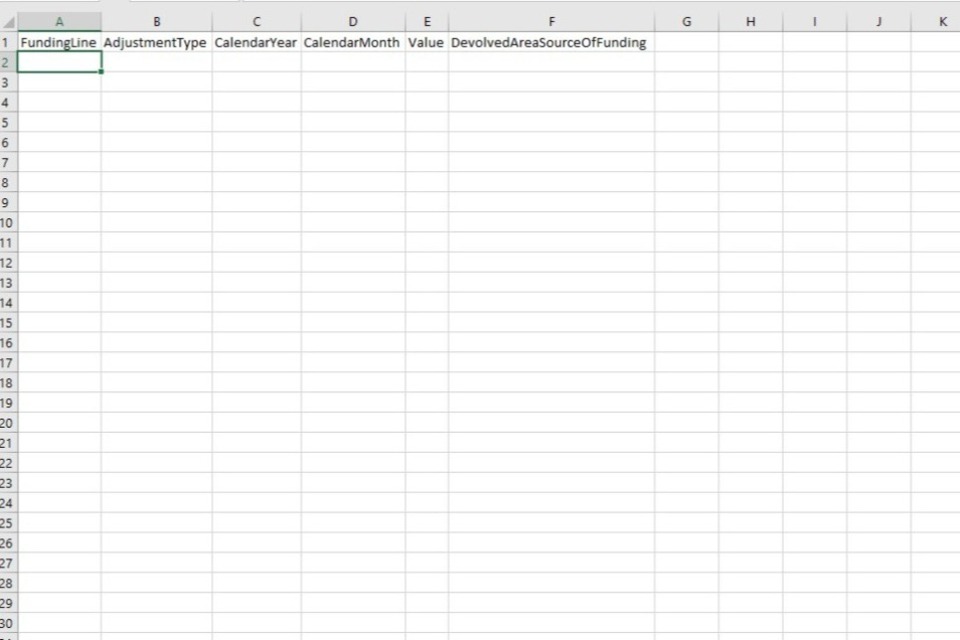
You should then fill out each subsequent row with data in each field that complies with each of the following sections.
7.1. FundingLine
The ‘FundingLine’ is a description of the type of learning delivery you have a contract to receive funding for. This is usually made up of an age group, a funding model and a contract type, for example, 16-18 Apprenticeship Non-Levy Contract (procured). We validate this against the contracts you hold.
The following list shows all the FundingLines you can claim funding for and how you should enter them in your EAS:
- 16-18 Apprenticeship (Employer on App Service) Levy funding
- 19+ Apprenticeship (Employer on App Service) Levy funding
- 16-18 Apprenticeship (Employer on App Service) Non-Levy funding
- 19+ Apprenticeship (Employer on App Service) Non-Levy funding
- 16-18 Apprenticeship Non-Levy Contract (procured)
- 19+ Apprenticeship Non-Levy Contract (procured)
- GSO Short Courses (Apprenticeship Units) Levy
- GSO Short Courses (Apprenticeship Units) Non-Levy
- DWP Adult Skills Fund core (non-procured)
- DWP Adult Skills Fund core (procured from Aug 2023)
- DWP Adult Skills Fund free courses for jobs (non-procured)
- DWP Adult Skills Fund free courses for jobs (procured from Aug 2023)
- DA/GLA Adult Skills Fund core (non-procured)
- DA/GLA Adult Skills Fund core (procured)
- DA/GLA Adult Skills Fund free courses for jobs (non-procured)
- DA/GLA Adult Skills Fund free courses for jobs (procured)
- Advanced Learner Loans Bursary
- Short Term Funding Initiative 1
- Short Term Funding Initiative 2
- Short Term Funding Initiative 3
- Short Term Funding Initiative 4
7.2. AdjustmentType
The ‘AdjustmentType’ is a description of the type of additional funding you want to claim through your EAS that cannot otherwise by claimed on your ILR.
The following table shows which AdjustmentTypes can be claimed for each FundingLine as you should enter them in your EAS. Where multiple similar FundingLines are eligible for the same AdjustmentTypes, we have clustered them together.
Table 2: Valid AdjustmentTypes
| FundingLines | Valid AdjustmentTypes |
|---|---|
| · 16-18 Apprenticeship (Employer on App Service) Levy funding · 19+ Apprenticeship (Employer on App Service) Levy funding |
Excess Learning Support Authorised Claims - Training costs exc Maths/Eng Authorised Claims - Additional payments for provider Authorised Claims - Additional payments for employer Authorised Claims - Additional payments for apprentice Authorised Claims - Maths and English |
| · 16-18 Apprenticeship (Employer on App Service) Non-Levy funding · 19+ Apprenticeship (Employer on App Service) Non-Levy funding |
Excess Learning Support Authorised Claims - Training costs exc Maths/Eng Authorised Claims - Additional payments for provider Authorised Claims - Additional payments for employer Authorised Claims - Additional payments for apprentice Authorised Claims - Maths and English |
| · 16-18 Apprenticeship Non-Levy Contract (procured) · 19+ Apprenticeship Non-Levy Contract (procured) |
Excess Learning Support Authorised Claims - Training costs exc Maths/Eng Authorised Claims - Additional payments for provider Authorised Claims - Additional payments for employer Authorised Claims - Additional payments for apprentice Authorised Claims - Maths and English |
| · GSO Short Courses (Apprenticeship Units) Levy · GSO Short Courses (Apprenticeship Units) Non-Levy |
Authorised Claims |
| · Advanced Learner Loans Bursary |
ALLB Excess Support Authorised Claims |
| · DWP Adult Skills Fund core (non-procured) | Excess Learning Support Authorised Claims The Kings Trust |
| · DWP Adult Skills Fund core (procured from Aug 2023) | Excess Learning Support Authorised Claims The Kings Trust Learner Support 19+ Hardship Learner Support 20+ Childcare Learner Support Residential Access Fund Learner Support IT devices and connectivity costs Learner Support Administration Expenditure |
| · DWP Adult Skills Fund free courses for jobs (non-procured) | Excess Learning Support Authorised Claims |
| · DWP Adult Skills Fund free courses for jobs (procured from Aug 2023) | Excess Learning Support Authorised Claims Learner Support 19+ Hardship Learner Support 20+ Childcare Learner Support Residential Access Fund Learner Support IT devices and connectivity costs Learner Support Administration Expenditure |
| · DA/GLA Adult Skills Fund core (non-procured) · DA/GLA Adult Skills Fund core (procured) |
Excess Learning Support Authorised Claims The Kings Trust Learner Support 19+ Hardship Learner Support 20+ Childcare Learner Support Residential Access Fund Learner Support IT devices and connectivity costs Learner Support Administration Expenditure DA/GLA Defined Adjustment 1 DA/GLA Defined Adjustment 2 DA/GLA Defined Adjustment 3 DA/GLA Defined Adjustment 4 DA/GLA Defined Adjustment 5 DA/GLA Defined Adjustment 6 |
| · DA/GLA Adult Skills Fund free courses for jobs (non-procured) · DA/GLA Adult Skills Fund free courses for jobs (procured) |
Excess Learning Support Authorised Claims Learner Support 19+ Hardship Learner Support 20+ Childcare Learner Support Residential Access Fund Learner Support IT devices and connectivity costs Learner Support Administration Expenditure DA/GLA Defined Adjustment 1 DA/GLA Defined Adjustment 2 DA/GLA Defined Adjustment 3 DA/GLA Defined Adjustment 4 DA/GLA Defined Adjustment 5 DA/GLA Defined Adjustment 6 |
| · Short Term Funding Initiative 1 · Short Term Funding Initiative 2 · Short Term Funding Initiative 3 · Short Term Funding Initiative 4 |
Authorised Claims |
Excess learning support
You can claim up to £150 of learning support a month through the ILR to support the delivery of a learning aim.
You can claim excess learning support through the EAS to supplement this if the cost of reasonable adjustments to deliver a learning aim exceeds £150 a month.
For example, the monthly rate of £150 for learning support in the ILR is enough to cover reasonable adjustment costs for a learning aim for each delivery month, except September when there is an extra one-off cost of £100. To claim this excess, you record £100 of excess learning support in your EAS for September.
For learning aims with a planned length of less than one calendar month, we have changed our funding calculation so that, in most cases, you should no longer need to use the EAS to claim the learning support. However, if you see that this funding has not been reflected in your funding reports, and we expect this to be in exceptional cases only, then please claim the entire cost of the learning support through the EAS, instead of just the excess.
When you can claim enough learning support funding through the ILR, you should not use the EAS. We expect you to use the EAS only when there is no alternative method to claim the funding.
For example, a learner needs support for two months only; £100 in the first month and £200 in the second month equalling £300 in total. We expect you only to claim for two monthly payments of £150 in the ILR to cover the total cost; we do not expect you to claim £50 excess in the second month.
You can find further information on when you may claim learning support, and evidence requirements in the funding rules matching the learning delivery you are claiming for.
Learner support
You can use the EAS to claim learner support funding for procured ASF provision that we fund. SAs may also ask you to use EAS to claim learner support for their provision.
You should not use this adjustment type for learner support for the ALLB (see the following section on ALLB excess support).
ALLB excess support
You may use the adjustment type of ‘ALLB excess support’ to indicate eligible learner support and excess learning support for learners with advanced learner loans.
Contract-funded providers, and providers that only hold a loans facility conditions and bursary funding agreement with us, can claim additional learner and learning support funding for learners with advanced learner loans where the fixed monthly rate does not cover the full cost of the support provided.
The monthly rate depends on the details entered in the ILR for code ALB1, ALB2 or ALB3. You must only claim the additional funding needed each month, and you must continue to claim the standard funding rate(s) using the ILR.
If you are funded by a procured contract for your ALLB delivery, the ‘ALLB excess support’ category may include a mixture of learner and learning support. You can find full details in the advanced learner loans funding rules.
If you are a grant-funded provider, you should only use this funding line to claim excess learning support, and not learner support, through the EAS. To claim your learner support, you will need to use the funding claim return directly, not your EAS.
If learning support for a single learner with an advanced learner loan is greater than £19,000 in a funding year, you must claim the excess over this amount as exceptional learning support. You can only claim this funding when we have agreed that you can submit an exceptional learning support – cost form.
Where you claim the ALLB, you must retain audit evidence for the overall cost of support provided, including funding earned using the ILR.
For further information on what you can claim, read the advanced learner loans funding rules.
The King’s Trust
You can claim additional funding for the King’s Trust qualifications above the qualification rate up to the value of the programme cost. For the purpose of claiming by EAS, you have to remove the apostrophe when claiming funding for The King’s Trust as some characters such as apostrophes can cause problems when importing or working with comma-separated value text files.
For more information about the amounts you can claim, refer to the relevant guidance from a strategic authority, or the ASF funding rates and formula.
For DWP-funded provision, the maximum cost you can claim through the EAS is calculated by subtracting the funding rate for the aim (including uplifts for area cost and/or disadvantage where applicable) from the maximum programme cost for the aim. This is shown as the ‘Maximum additional funding for all learners’ in Table 4 within the ASF funding rates and formula document.
For information on which learners are eligible, refer to the relevant strategic authority rules or Adult skills fund: funding and performance management rules.
Authorised claims
An authorised claim is a generic adjustment to funding that you may request to make, or that you may be asked to make, where funding has not been correctly paid to you.
A positive authorised claim may only be recorded in your EAS with the prior approval of us or the relevant strategic authority that is providing the funding. You do not need permission for a negative claim, although you may need to check with the relevant strategic authority if it relates to devolved funding.
You may need to use this adjustment type if:
- we have asked you, or you want to, repay funding to us following an audit. You must enter any repayments as a negative figure (-xxxx.xx)
- the SA responsible for funding your provision asks you to use it
- the funding rules identify an exception where you can use this category
- we, or the relevant SA, give you written permission for a positive claim
We will monitor the use of this adjustment type and may ask for the evidence of authorisation if we believe we have not authorised its use.
For apprenticeships, we have separated Authorised Claims into these 5 adjustment types:
- Authorised Claims - Training costs exc Maths/Eng
For claims relating to training costs, excluding training in maths and English.
- Authorised Claims - Additional payments for provider
For claims relating to the £1,000 additional payments we make to you for younger apprentices and eligible 19-23 year olds.
- Authorised Claims - Additional payments for employer
For claims relating to the £1,000 additional payments we make to you on behalf of the employer.
- Authorised Claims - Additional payments for apprentice
For claims relating to the first £1,000 additional payment we make to you on behalf of the apprentice, for apprentices who are care leavers (aged up to 24 years old). The second and third instalments of the care leaver bursary will be paid to you based on continuing learning following an initial claim through either the ILR or the EAS. The second and third payments must not be claimed through the EAS. For more information about the care leaver bursary, refer to the apprenticeship funding rules.
- Authorised Claims - Maths and English
For claims relating to training costs in maths and English.
7.3. Funding and monitoring recoveries
If a learner is continuing learning at the final R14 collection at the end of the year, but you record in the subsequent ILR year that they should left before 1 August, you may have earned funding that you need to pay back. For example, the funding relating to the funding monitoring report FRM27 – Continuing or completed learning aims that are now reported as withdrawn on or before 31 July of the previous funding year.
In previous years we have asked you to repay the FRM27 funding through the EAS. However, we will now contact you separately after the R14 return to recover the funding that relates to FRM27. You do not need to take any action in-year for this report: do not submit repayments for FRM27 through the EAS.
7.4. CalendarYear
You must record the calendar year when the activity took place which this adjustment relates to. This could be different to the year you submit the data but must be within the current funding year. It should be 4 digits, for example 2026.
7.5. CalendarMonth
You must record the calendar month when the activity took place which this adjustment relates to. This could be different to the month you submit the data but must, in combination with the CalendarYear, be within the current funding year. It should be up to 2 digits long, for example 5 for May or 12 for December.
7.6. Value
You need to enter the value of the adjustment being claimed using numbers and a decimal point only. You can record a positive number, for example 45.24, or negative number, for example -12.79.
7.7. DevolvedAreaSourceOfFunding
You must record a value in this field if you have recorded a FundingLine of ‘DA/GLA Adult Skills Fund core (non-procured)’, ‘DA/GLA Adult Skills Fund core (procured)’, ‘DA/GLA Adult Skills Fund free courses for job (non-procured)’ or ‘DA/GLA Adult Skills Fund free courses for job (procured)’.
For any other FundingLine, you must leave this field blank.
You must record the source of funding (SOF) code of the devolved area for which you are recording an earnings adjustment, using the same definitions of SOF codes as we use in the ILR specification for 2026 to 2027.
For example, if you are claiming an authorised claim for a learner from Greater Manchester, then you would enter ‘110’ into this field.
For provision that we fund, you should not use the SOF code 105 which is used in the ILR to represent adult provision that we fund. Instead, you should leave this field blank and use one of the FundingLines which represent our funding.
Below is a list of valid SOFs in this field, and the devolved area they represent. In 2026 to 2027 there are new SOF codes for the 7 newly strategic authorities.
Table 3: SOF codes for the SA they represent
| SOF Code | SA | New from 2026 to 2027 |
|---|---|---|
| 110 | Greater Manchester Combined Authority | No |
| 111 | Liverpool City Region Combined Authority | No |
| 112 | West Midlands Combined Authority | No |
| 113 | West of England Combined Authority | No |
| 114 | Tees Valley Combined Authority | No |
| 115 | Cambridgeshire and Peterborough Combined Authority | No |
| 116 | Greater London Authority | No |
| 118 | South Yorkshire Mayoral Combined Authority | No |
| 119 | West Yorkshire Combined Authority | No |
| 120 | North East Mayoral Combined Authority | No |
| 121 | East Midlands Combined County Authority | No |
| 122 | York and North Yorkshire Combined Authority | No |
| 123 | Cornwall Council | No |
| 124 | Hull and East Yorkshire Combined Authority | Yes |
| 125 | Lancashire Combined County Authority | Yes |
| 126 | Greater Lincolnshire Combined County Authority | Yes |
| 127 | Devon and Torbay Combined County Authority | Yes |
| 128 | Buckinghamshire Council | Yes |
| 129 | Surrey County Council | Yes |
| 130 | Warwickshire County Council | Yes |
8. When will you pay us?
We pay you monthly in arrears for all provision except devolved ASF. We will add the extra funding you claim through the EAS to your ILR earnings. We will pay you each month at a contract level. To understand how DAs will pay you for your devolved ASF provision claimed through EAS, please consult their documentation.
We will make payments for R01 to R12 each month from September to August. We make R13 and R14 payments later in the year, depending on the FundingLine.
9. How much have I earned or repaid?
Once you submit a file successfully, we will generate 2 EAS specific reports for you from R01:
- EAS Rule Violation Report (CSV) – this will show you any records with errors or warnings, for example, “The CalendarMonth must be in numbers, not letters”.
- EAS Funding Report (CSV) – this will show you all rows in your report that have passed validation, and consequently you may receive funding for.
We will also produce these reports on the submit learner data website. These show you your earnings for each funding line based on your latest submitted ILR and EAS, from the DfE and from strategic authorities respectively:
- Funding Summary Report
- Devolved Adult Education Funding Summary Report
- Adult Funding Claim Report
The Funding Summary Report shows the data from the EAS under the appropriate budget line. The titles of the funding lines start with the letters ‘EAS’ to distinguish them from the funding generated through the ILR. The Devolved Adult Education Funding Summary Report shows the equivalent data for your devolved adult education funding.
The funding in your Funding Summary Reports is shown by months, which relate to when you earned the funding, not when we pay you for it.
In cases where a file level validation error is encountered that prevents us processing the file further, the EAS Rule Violation Report will be the only report we produce for that submission.
You will receive no funding for data in your EAS file that fails validation. You should make every effort to resolve the errors and warnings shown in your rule violation report so that you receive all the funding you are claiming.