Final funding claims user guide
Updated 9 October 2026
Applies to England

© Crown copyright 2026
This publication is licensed under the terms of the Open Government Licence v3.0 except where otherwise stated. To view this licence, visit nationalarchives.gov.uk/doc/open-government-licence/version/3 or write to the Information Policy Team, The National Archives, Kew, London TW9 4DU, or email: psi@nationalarchives.gov.uk.
Where we have identified any third party copyright information you will need to obtain permission from the copyright holders concerned.
This publication is available at https://www.gov.uk/government/publications/funding-claims-and-reconciliation/year-end-funding-claims-user-guide
Introduction
The aim of this document is to:
- provide an overview of the funding claims process
- provide detailed key user functionality
- demonstrate key areas of the system
- identify where and who to go for further help and support
It covers the following:
- how do I make a funding claim?
- filling in the form
- how to submit your claim
- reports
- help and support

How to make a funding claim?
To get started:
- Go to Submit learner data.
- Sign into the service using your usual DfE Sign-in log in details.
- Choose ‘Funding Claims: Submit Funding Claims’ from the options on screen as highlighted in Figure 1.
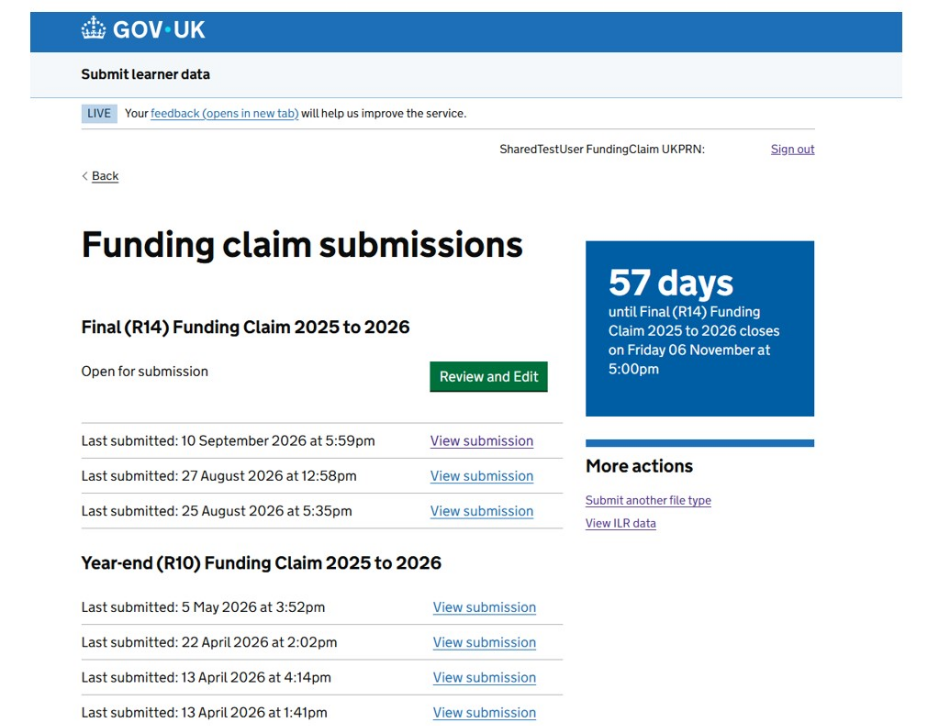
- You will be taken to a summary page. If a funding claim is due, you will see a green button labelled ‘Review and Edit’ as highlighted in Figure 2. Click that button to get started.
Figure 1: an example of how to access funding claims
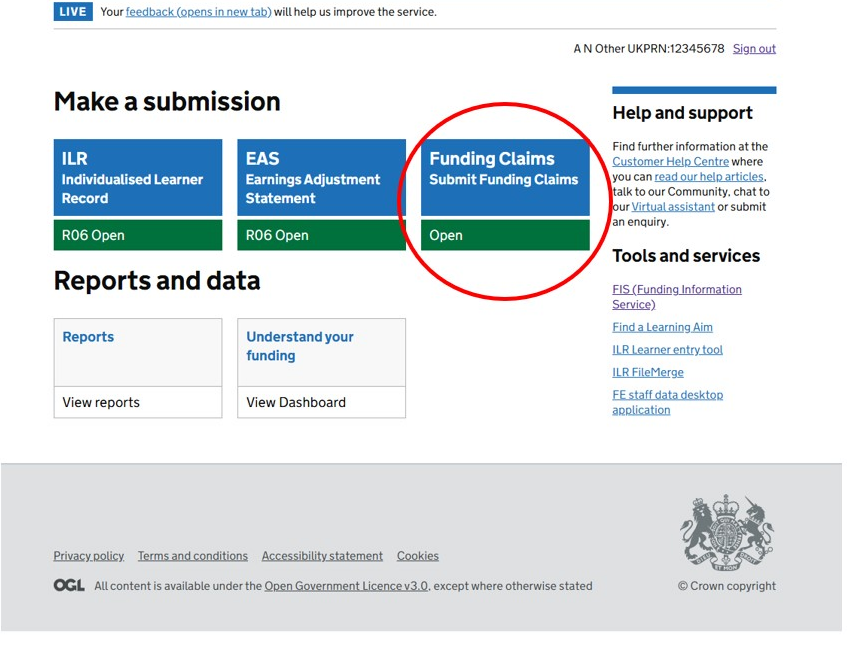
Figure 2: an example showing submissions and claim dates
Filling in the form
Project Simplification providers will receive separate guidance on how to complete the final funding claim.
In your Final funding claim, you only need to agree the figures as we will use your Individualised Learner Record (ILR) and, if applicable your earnings adjustment statement (EAS) data to pre-populate your actual delivery figures.
For the deliverable lines that are non-formula funded, for example ‘ASF Adult Skills of which Tailored Learning’, you will need to enter your actual delivery from your own records as these are not pre-populated from your ILR or EAS data submissions.
If you include any exceptional adjustments in your final funding claim, you must send supporting evidence within 5 working days. Submit your evidence using the Customer Help Portal, and state that it relates to your 2025 to 2026 final funding claim.
What to include in your evidence
You need to provide:
- evidence of why the adjustment was needed – explain the issue and why you made the adjustment
- proof of the error and its impact – include learner-level details like:
- unique Learner Number (ULN) or student reference numbers
- cost or spending details to support your claim – do not include personal data (for example, name, date of birth, address) to comply with General Data Protection Regulation (GDPR)
- any extra information – add anything else that supports your case
Important
If you don’t send your evidence within 5 working days, your adjustment will be removed and won’t appear in your final reconciliation statement.
Your case will be reviewed to confirm whether the exceptional adjustment reflects a data error affecting 5% or more of the appropriate contract value, such as:
- your ASF contract value is £100,000 – we would only consider your exceptional adjustment if the amount you enter is more than £5,000
- your ALLB bursary contract value is £50,000 – we would only consider your exceptional adjustment if the amount you enter is more than £2,500
Adjustments below the threshold will usually be rejected. However, negative adjustments where you are due to return funding will still be accepted. All exceptional adjustments are subject to affordability, and the outcome of your case will be reflected in your final reconciliation statement.
You can save the form to complete later at any time.
Figure 3a: a funding claims form example for adult skills fund (ASF)

Figure 3b: funding claims form example for adult skills fund – free courses for jobs offer (grant funded)
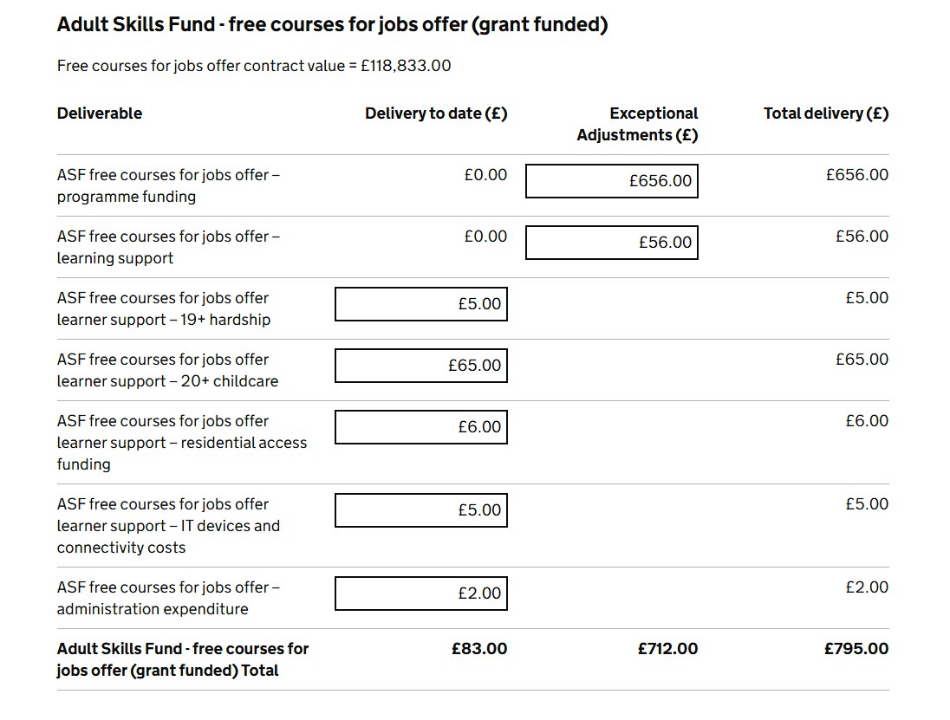
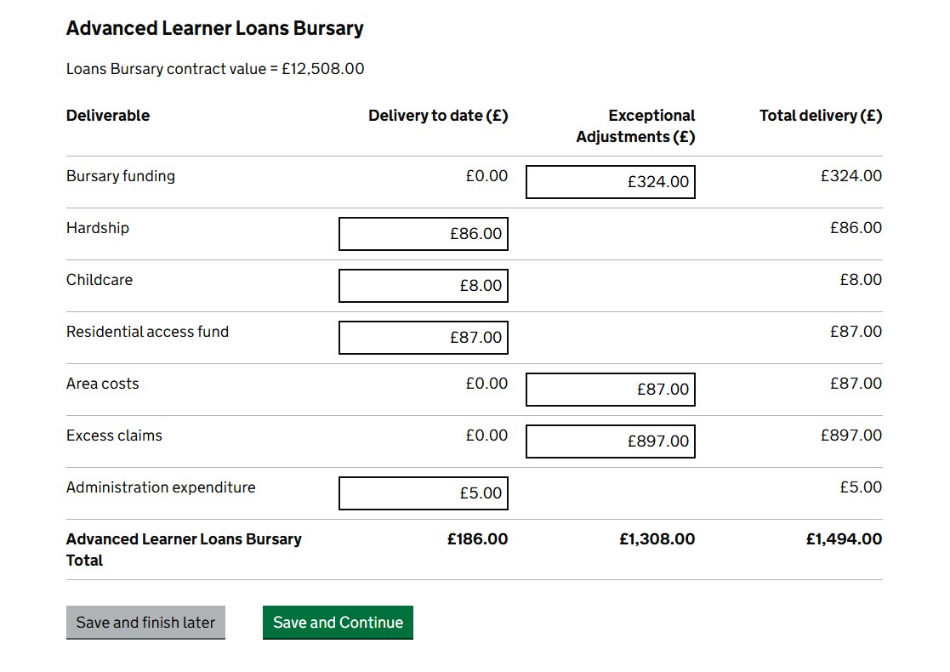
Figure 3c: funding claims form example – advanced learner loans bursary (ALLB)
You can save the form using the buttons at the bottom of the form.
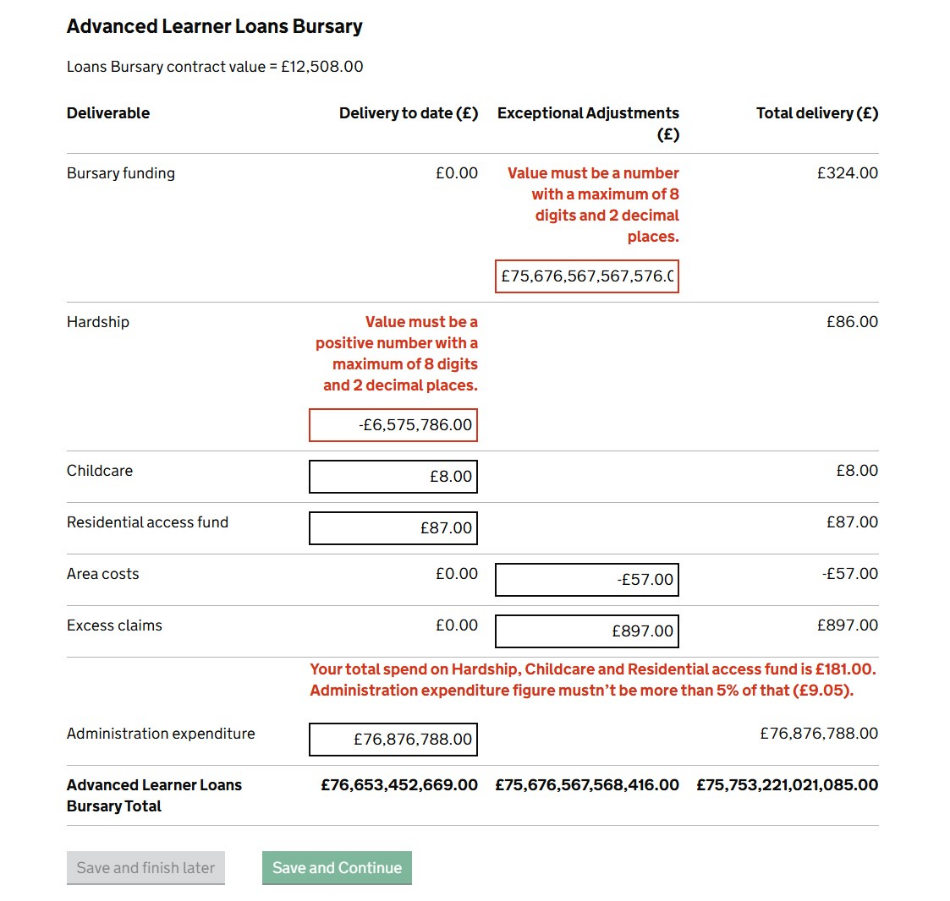
Errors
You won’t be able to submit a form until it is clear of any errors. Errors will appear in red on the form where the problem is in figure 4. The wording in red will explain what the error is. As soon as you correct the errors, you will be able to continue.
Errors that prevent you submitting your form
Figure 4a: adult skills fund (grant funded)
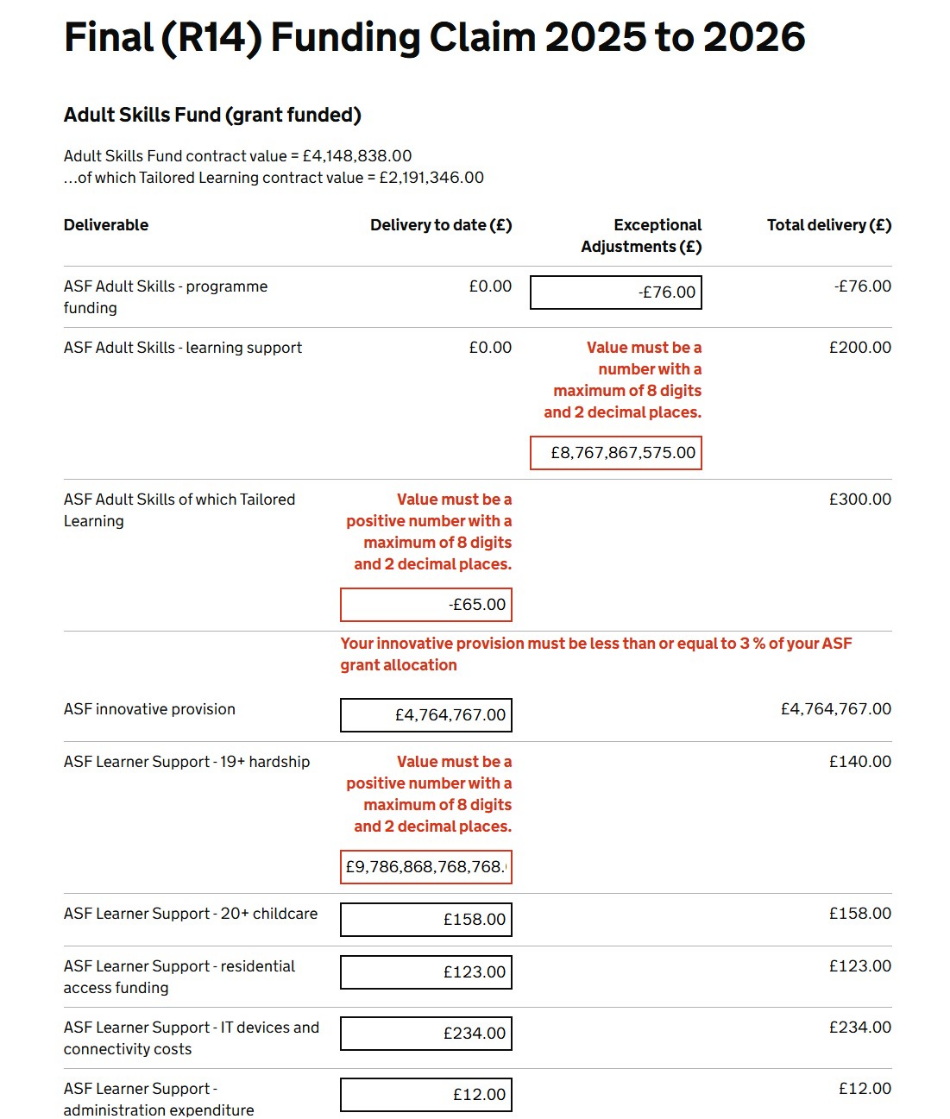
Figure 4b: adult skills fund – free courses for jobs offer (grant funded)
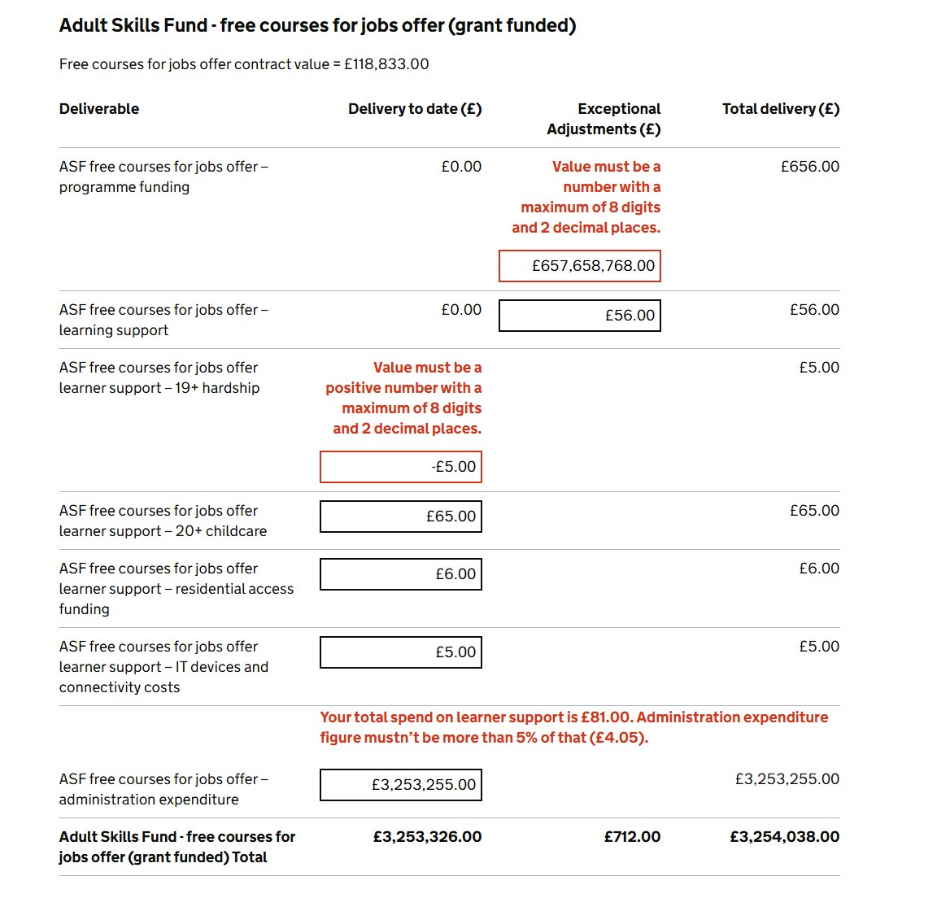
Figure 4c: advanced learner loans bursary
How to submit your claim
When you are satisfied with the figures on the form select ‘save and continue’.
We will check your form and if anything does not seem right, we will display a warning message. When you see this message, you can choose to go back and edit your form or continue. An example of a warning message is in figure 5. A validation message will be displayed if we were expecting a figure, but you did not supply a figure.
Figure 5: a validation message example
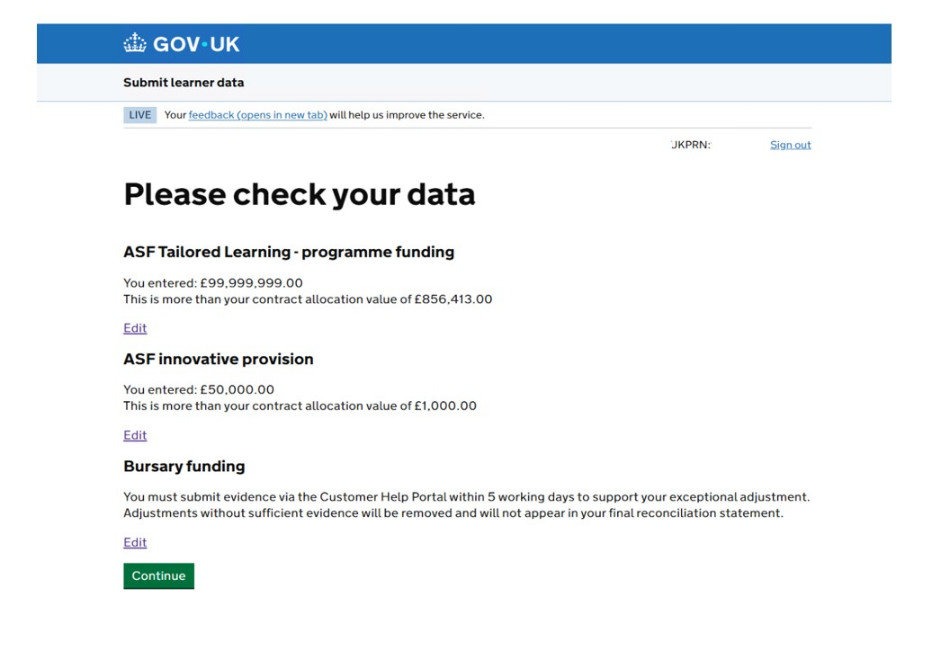
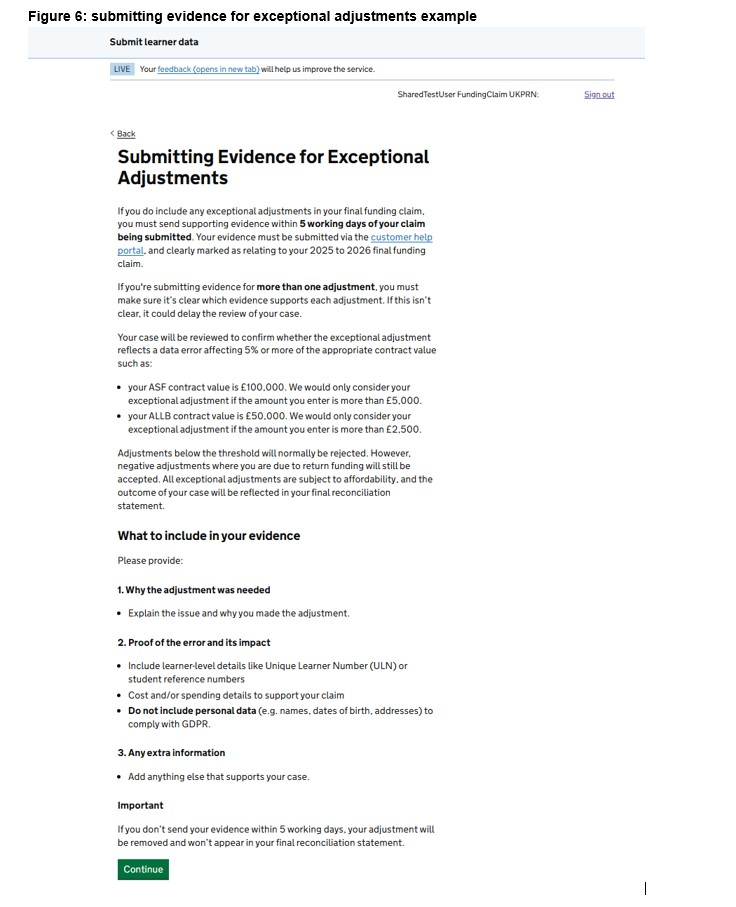
If you continue with your form, you will see the Submitting Evidence for Exceptional Adjustments page. You need to read this and action it if you submit any exceptional adjustments.
If you do not need to submit an exceptional adjustment, ignore this page. When you have read this page, click continue to advance to the next page.
Figure 6: submitting evidence for exceptional adjustments example
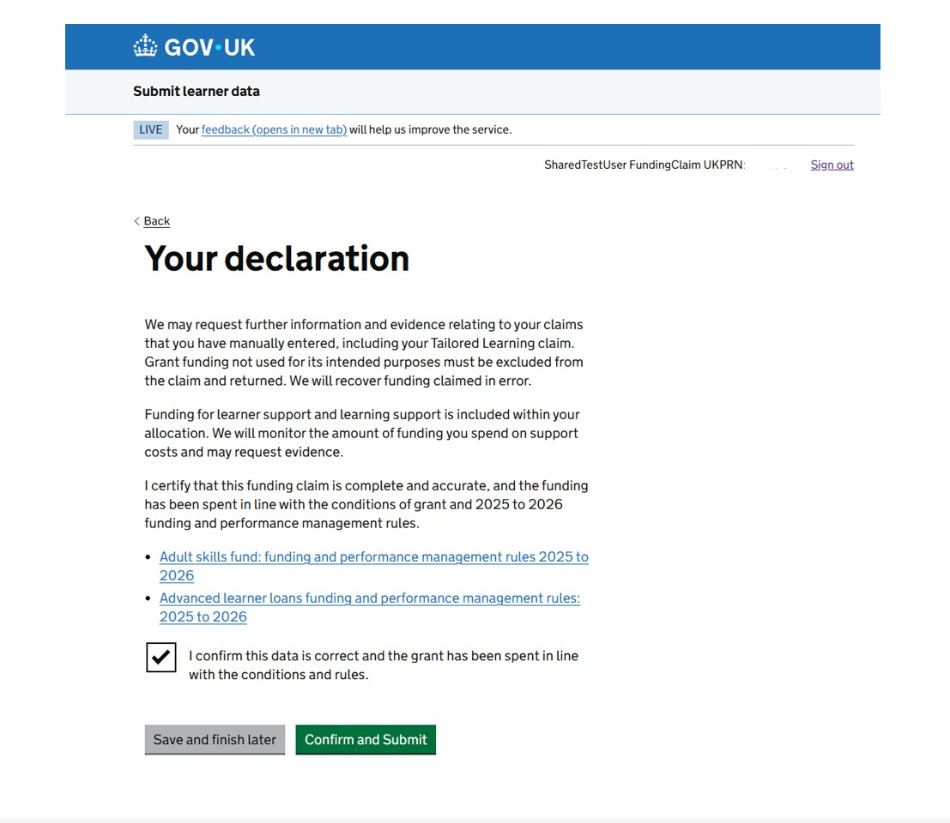
If you continue with your form, you will see a declaration which you need to read and agree to. Tick the check box to agree and then select ‘Confirm and Submit’ as highlighted in figure 7.
Figure 7: a declaration example
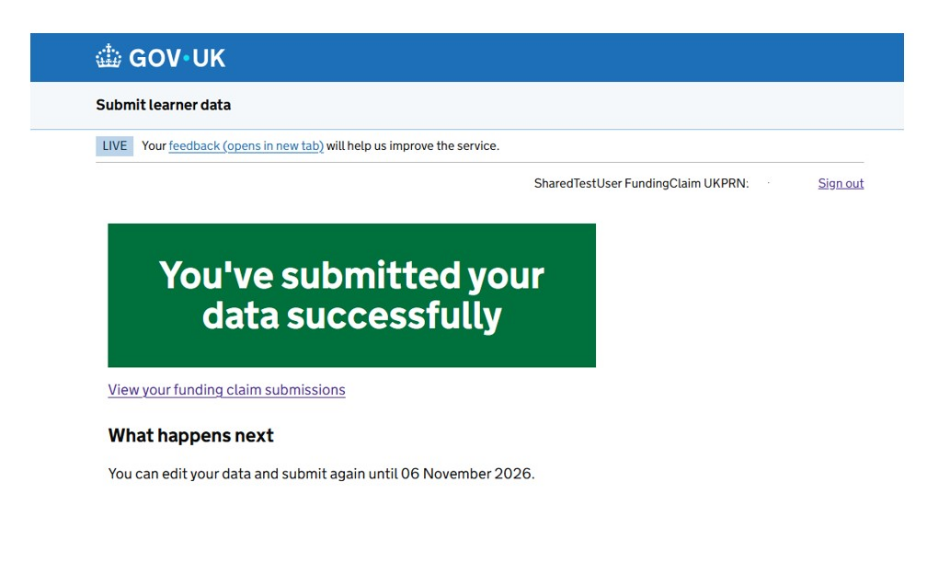
You will receive a confirmation message and an explanation of what happens next – see figure 8.
When you submit your funding claims on Submit Learner Data, you will be able to view it on Manage your education and skills funding within 15 minutes.
Figure 8: confirmation example
Submission reports
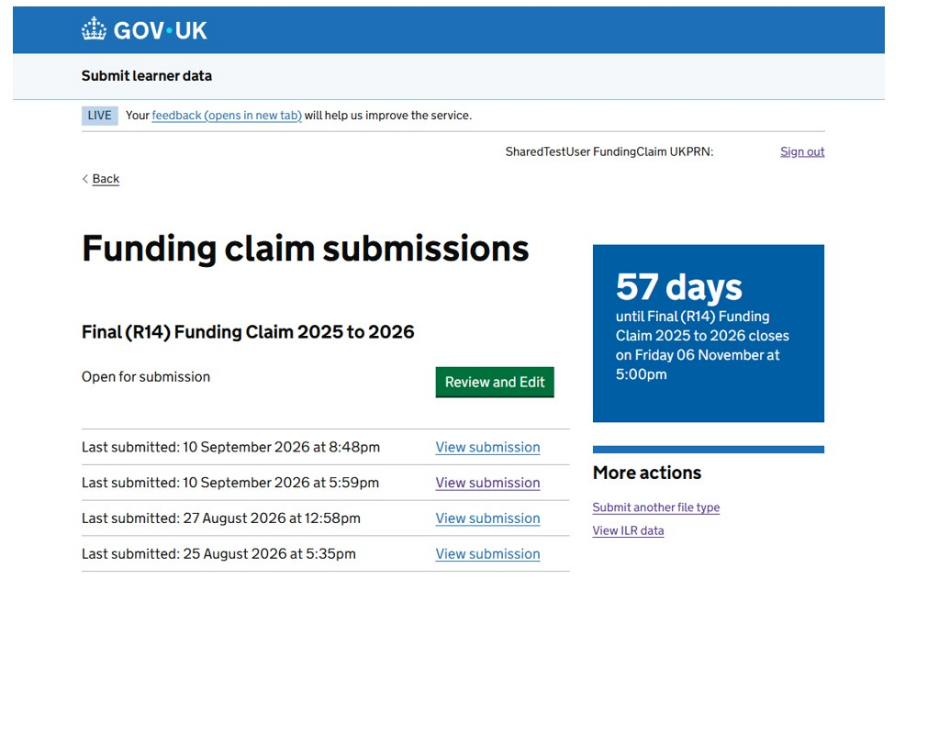
We will store all your submissions going forward. You can access them any time from the ‘Funding claim submissions’ page.
Select ‘View submission’ next to the submission report you want to view. You will then see a page that shows you the data you have previously submitted, such as in figure 9.
Figure 9: how to view your submissions on the ‘Your submissions’ page
Help and support
Use the 2025 to 2026 funding claims guidance for more information on how to submit a funding claim.
If you need to raise a query, use our customer help portal.