Mid-year funding claim user guide
Updated 3 February 2026
Applies to England

© Crown copyright 2026
This publication is licensed under the terms of the Open Government Licence v3.0 except where otherwise stated. To view this licence, visit nationalarchives.gov.uk/doc/open-government-licence/version/3 or write to the Information Policy Team, The National Archives, Kew, London TW9 4DU, or email: psi@nationalarchives.gov.uk.
Where we have identified any third party copyright information you will need to obtain permission from the copyright holders concerned.
This publication is available at https://www.gov.uk/government/publications/funding-claims-and-reconciliation/final-funding-claims-user-guide
Introduction
The aim of this document is to:
- provide an overview of the funding claims process
- provide detailed key user functionality
- demonstrate key areas of the system
- identify where and who to go for further help and support
It covers:
- how to make a funding claim
- filling in the form
- how to submit your claim
- reports
- help and support

How to make a funding claim
To get started:
- Go to submit learner data.
- Sign into the service using your usual DFE Sign-in log in details.
- Choose ‘funding claims: submit funding claims’ from the options on screen as highlighted in figure 1.
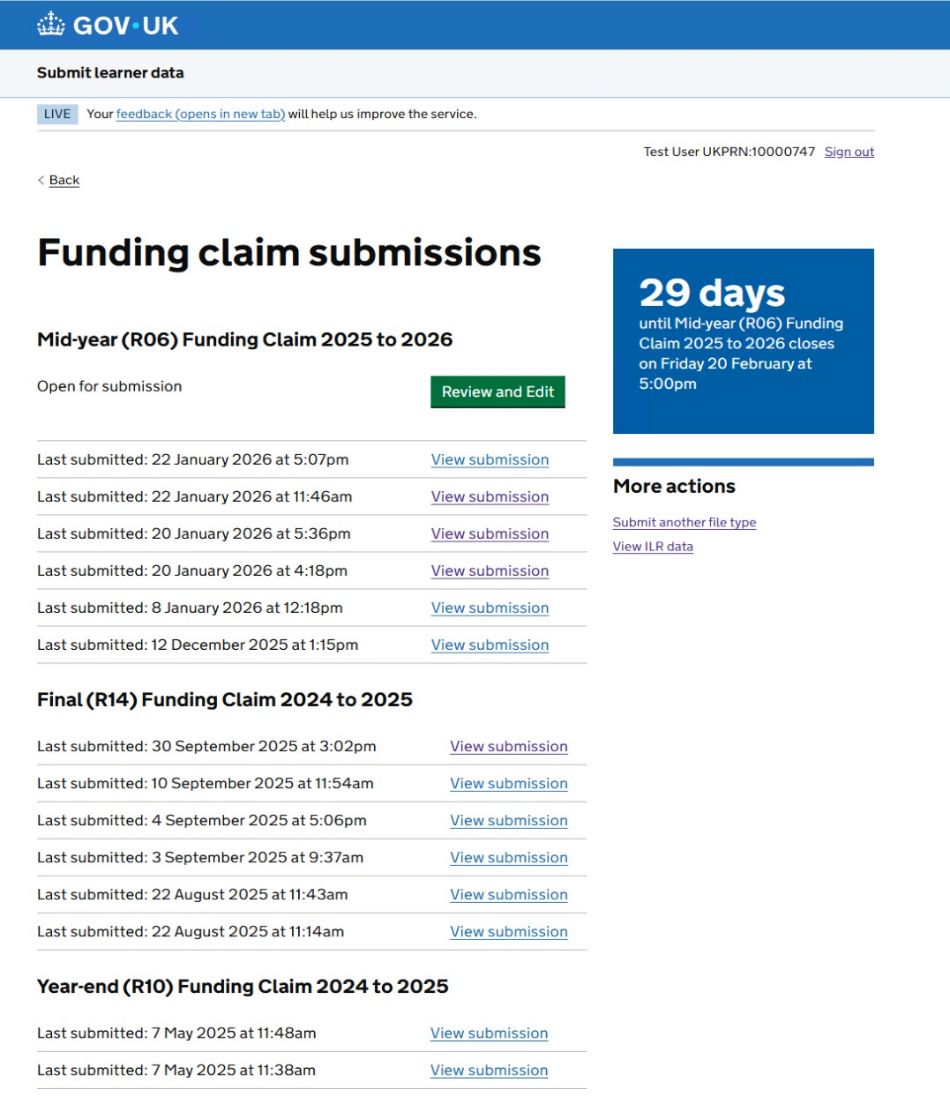
- You will be taken to a summary page. If a funding claim is due, you will see a green button labelled ‘review and edit’ as highlighted in figure 2. click that button to get started.
Figure 1: an example of how to access funding claims
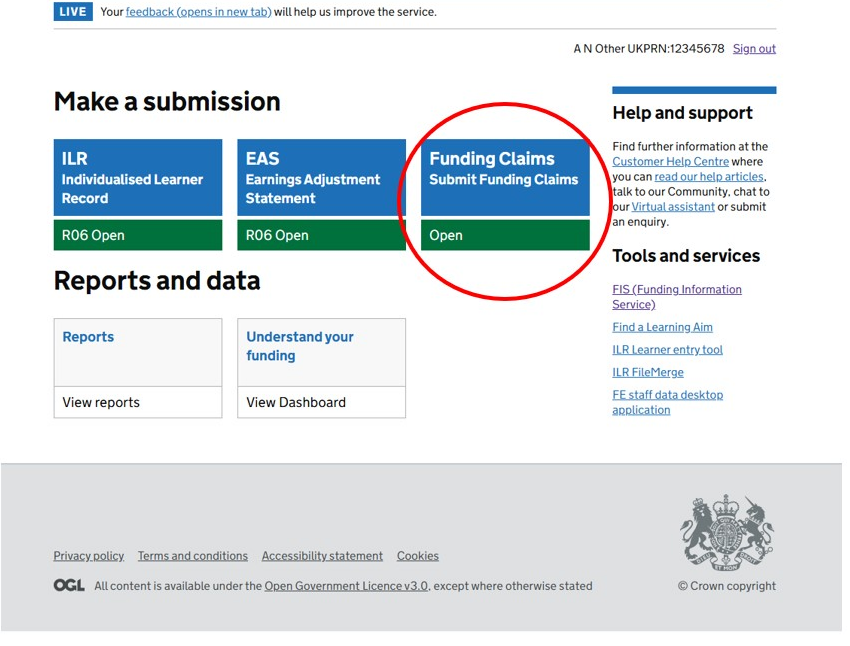
Figure 2: an example showing submissions and claim dates
Filling in the form
16 to 19 funding is no longer included in the funding claims process as we have removed the requirement to sign the final funding claim in manage your education and skills funding. If you are delivering grant-funded adult provision you must still submit mid-year, year-end and final claims through the submit learner data portal.
Project Simplification providers will receive separate guidance on how to complete the mid-year claim.
Mid-year and year-end funding claims
We need you to supply up-to-date figures for delivery.
We will pre-populate the ‘delivery to date’ figures based on your individualised learner record (ILR) and earnings adjustment statement (EAS) data submissions. As a provider, you need to fill in the ‘forecasted delivery’ for each field for the rest of the year.
For the deliverable lines that are non-formula funded, such as ‘ASF adult skills of which tailored learning’, you will need to enter your actual delivery and forecast figures from your own records as these are not pre-populated from your ILR or EAS data submissions.
Contract for services funded providers do not have to submit a claim for learner support delivery as this can now be claimed through the EAS.
You can save the form to complete later at any time.
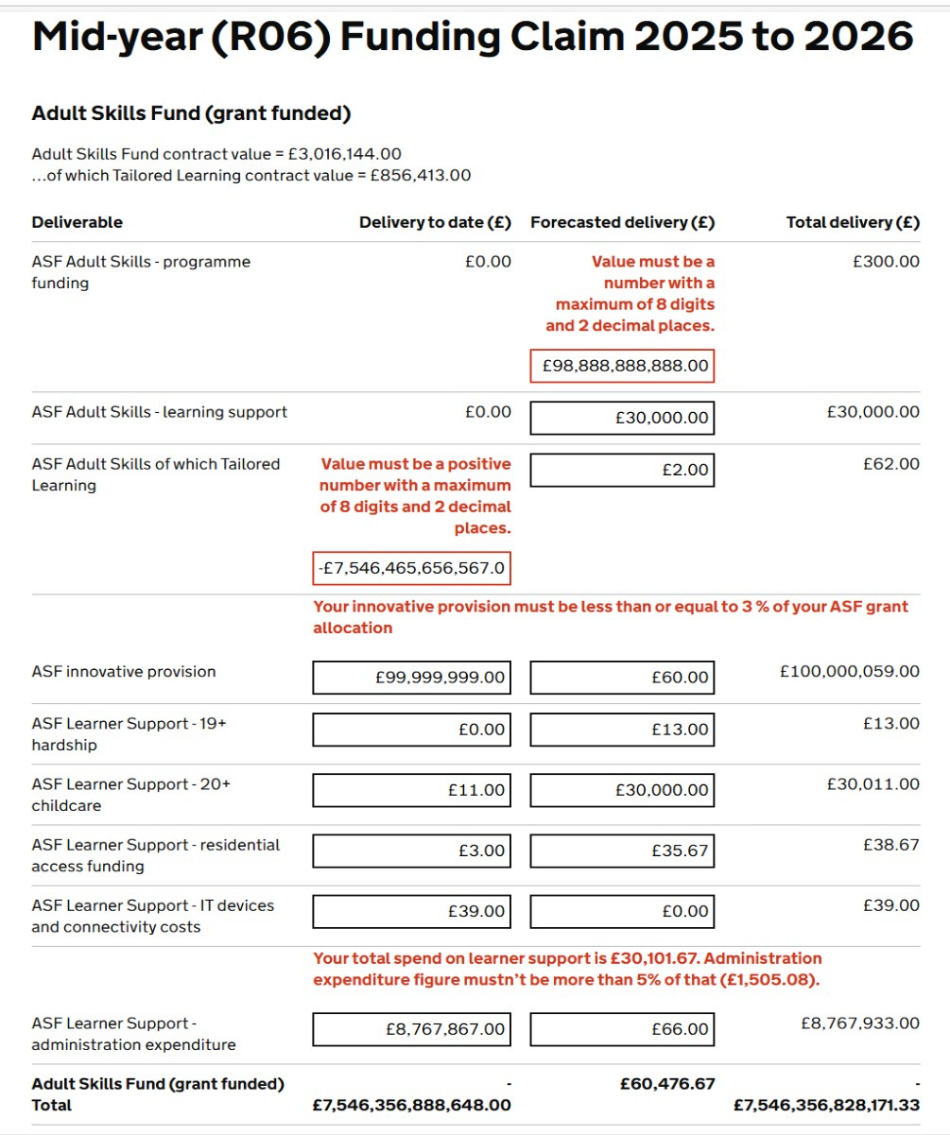
Figure 3a: a funding claims form example for adult skills fund (ASF)
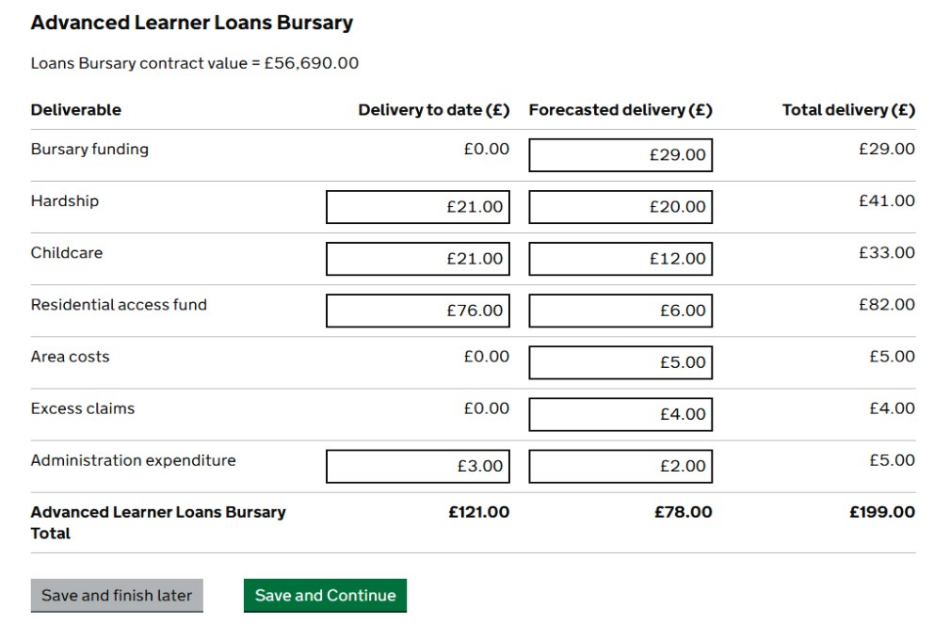
See figure 3b for an advanced learner loans bursary (ALLB) example of the claim form.
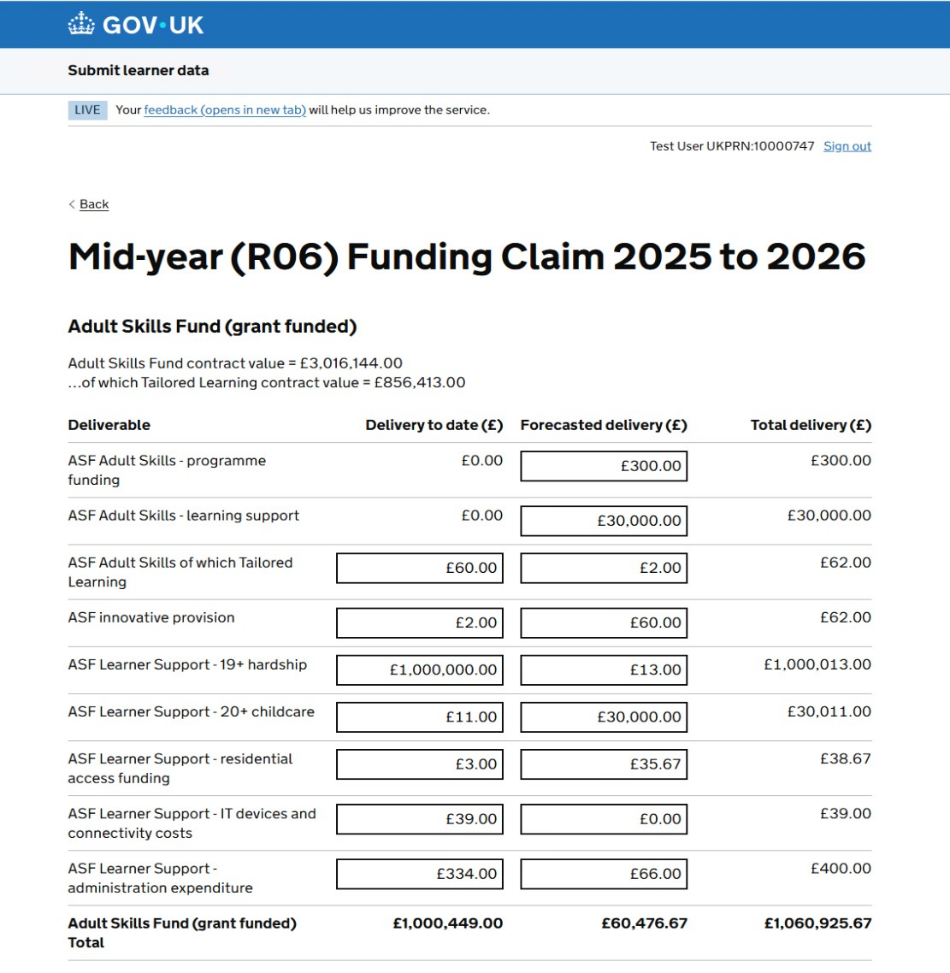
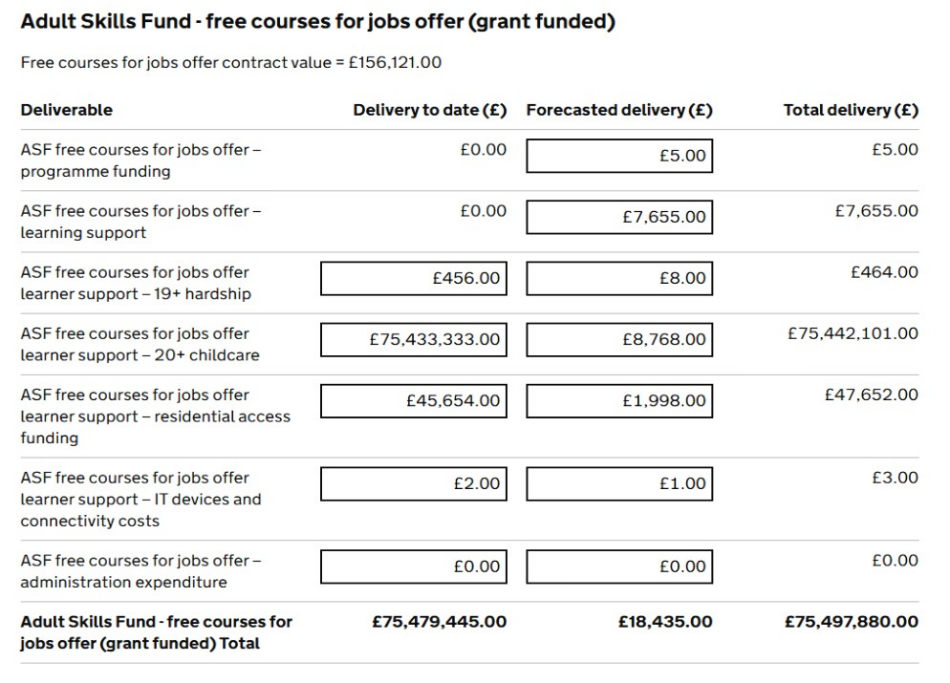
Figure 3b: funding claims form – advanced learner loans bursary (ALLB) example
You can save the form using the buttons at the bottom of the form.
Errors
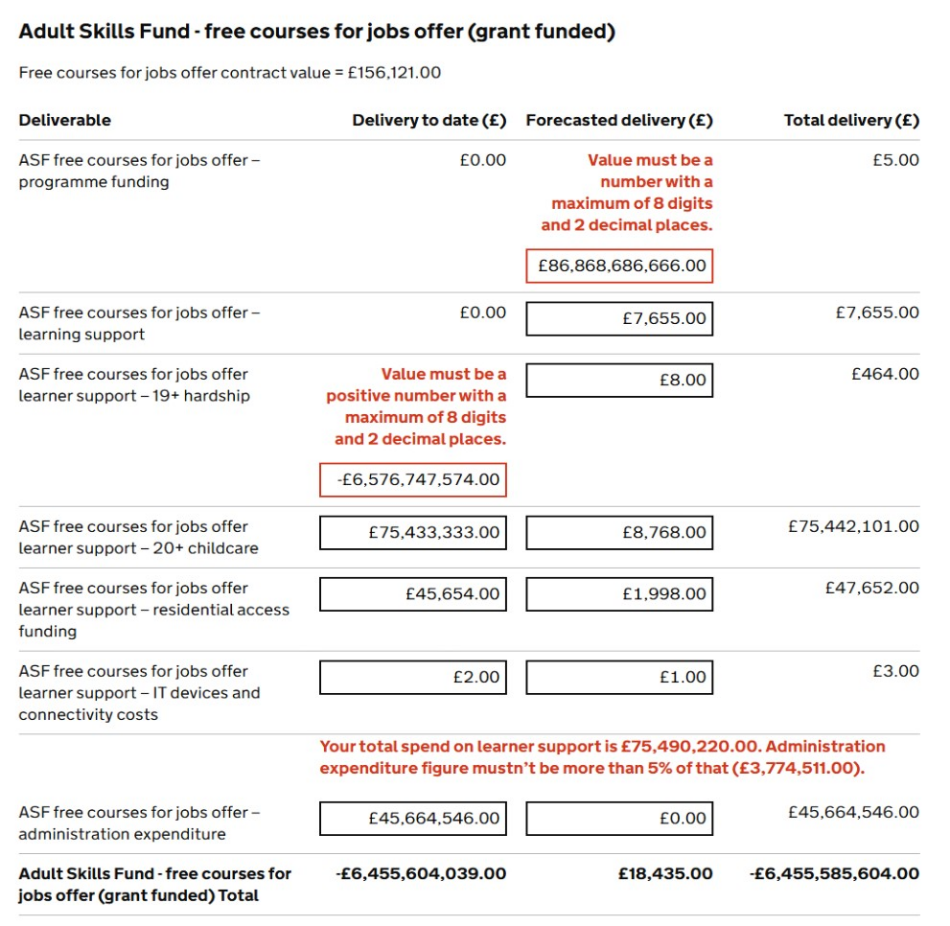
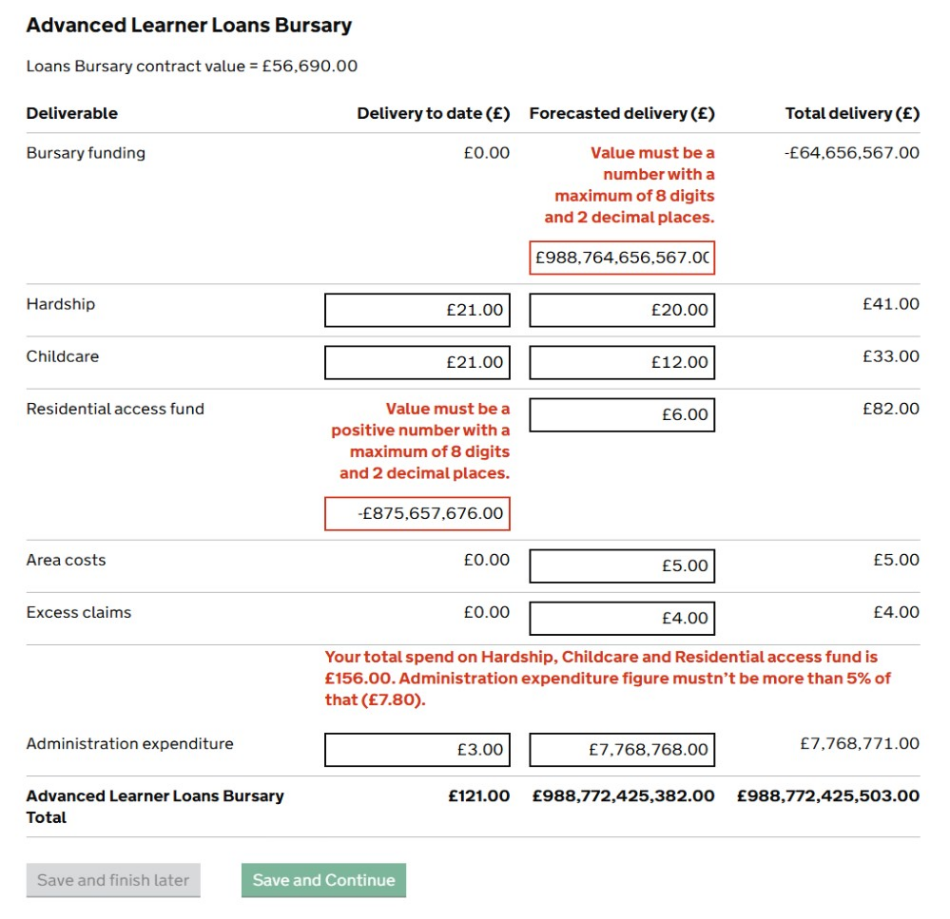
You won’t be able to submit a form until it is clear of any errors. Errors will appear in red on the form where the problem is, as shown in figure 4. The wording in red will explain what the error is. As soon as you correct the errors, you will be able to continue.
Figure 4: an example showing errors that stop you from submitting your form
How to submit your claim
When you are satisfied with the figures on the form, select ‘save and continue’.
We will check your form and if anything does not seem right, we will display a warning message. When you see this message, you can choose to go back and edit your form or continue. An example of a warning message is in figure 5. A validation message will be displayed if we were expecting a figure, but you did not supply a figure.
Figure 5: a validation message example
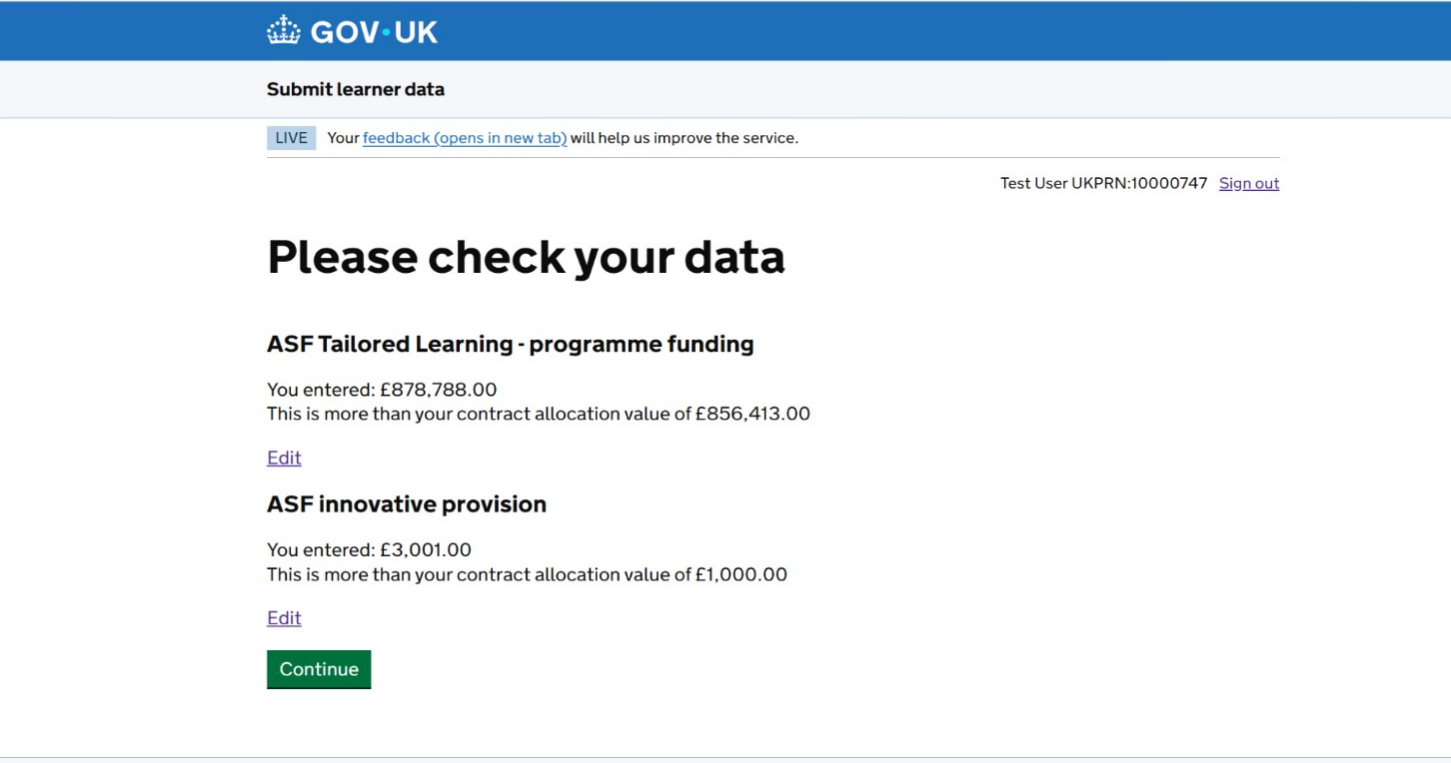
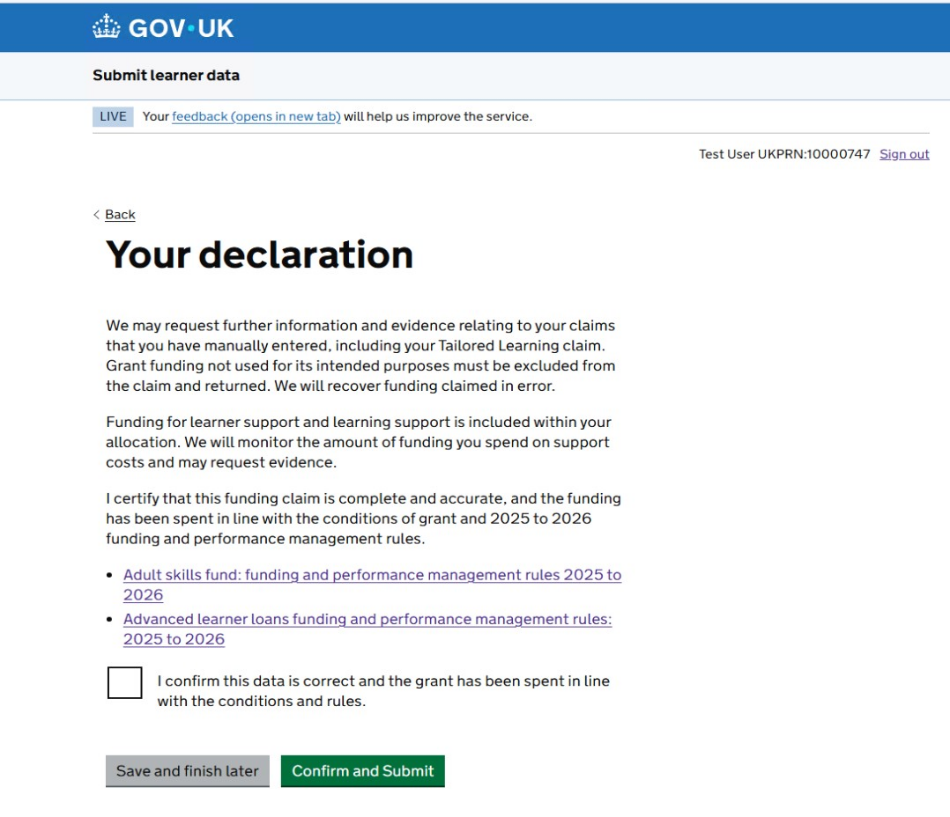
Figure 6: a declaration example
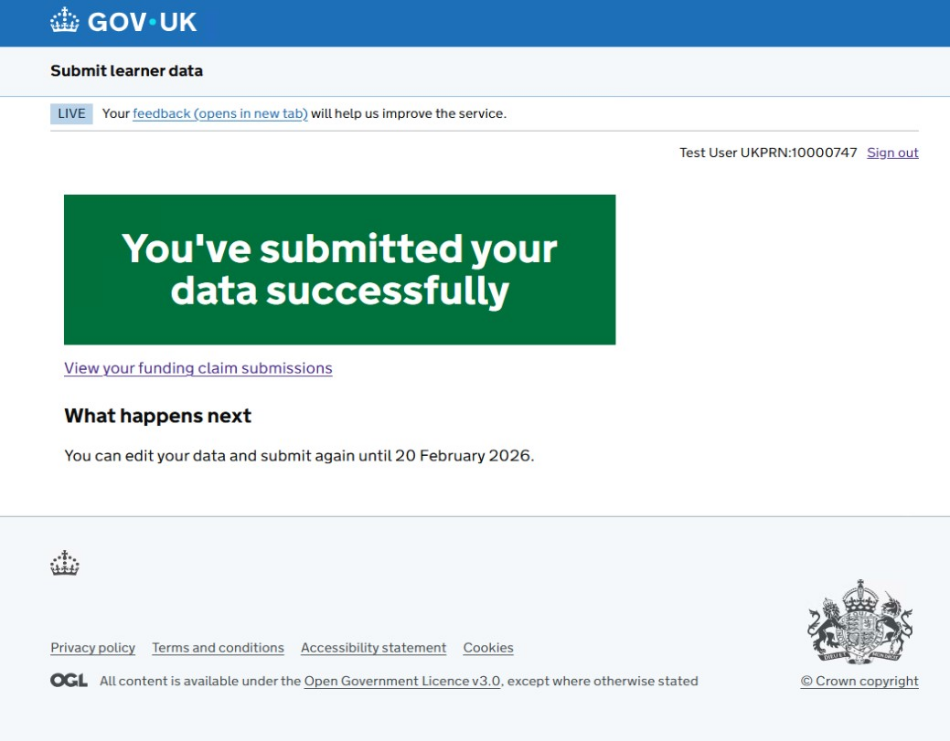
You will receive a confirmation message and an explanation of what happens next, see figure 7.
Once you have submitted your funding claims on submit learner data, you will be able to view it on manage your education and skills funding within 15 minutes.
Figure 7: the confirmation example
Submission reports
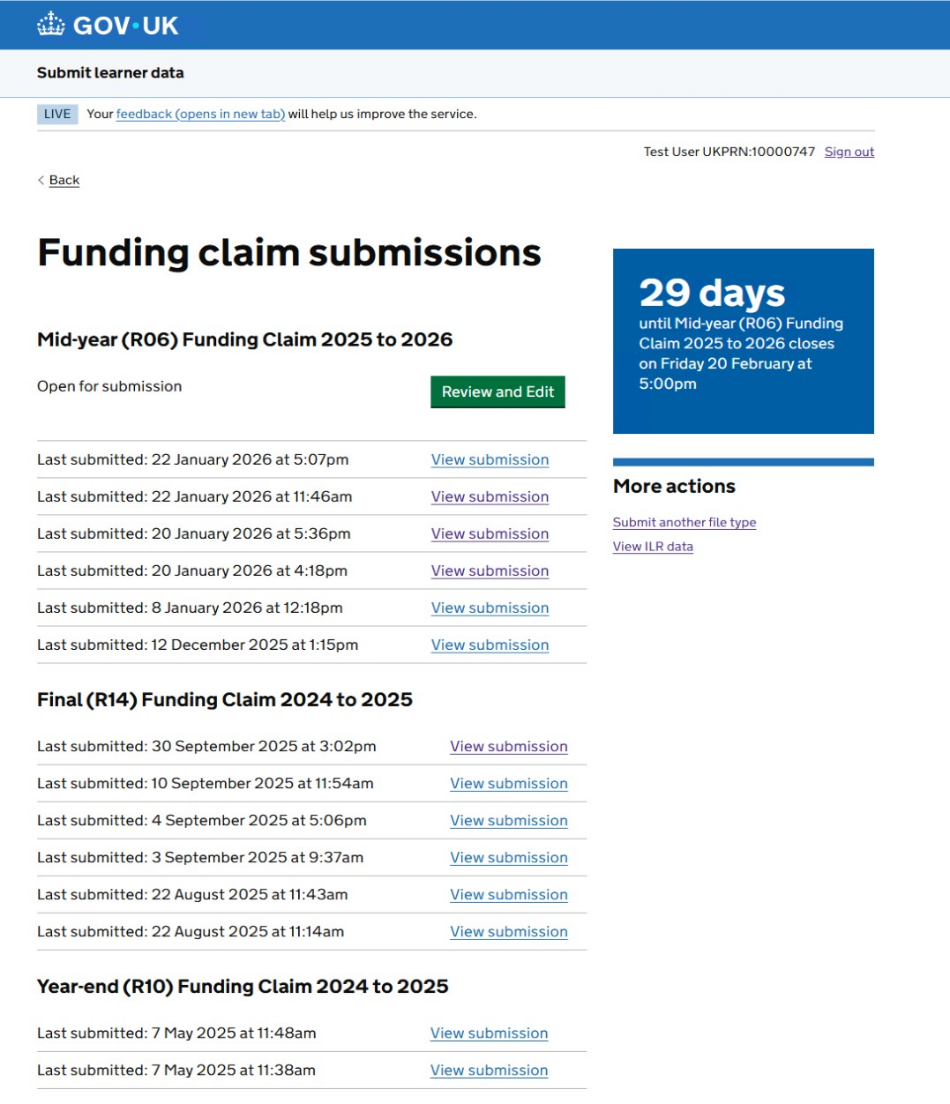
We will store all your submissions going forward. You can access them any time from the funding claim submissions page.
Select ‘view submission’ next to the submission report you want to view. You will then see a page that shows you the data you have previously submitted, such as in figure 8.
Figure 8: how to view your submissions
Help and support
For further guidance on how to submit a funding claim, please read the 2025 to 2026 funding claims guidance.
If you need to raise a query, please use our customer help portal.